

How to Reset Smart Glasses to Factory Settings Safely?
SpeCiC-AI-Smart-Glasses2026-04-19T22:46:54+08:00How to Reset Smart Glasses to Factory Settings Safely?
Let's be real for a second. We've all been there.
You're having a great day with your AI glasses with camera, taking hands-free photos, translating menus on the fly, and jamming to your favorite playlist.
Then suddenly, everything goes wrong.
Your AI assistant starts answering questions that no one asked. Your glasses disconnect from your phone every five minutes. The battery dies in two hours when it used to last all day.
Or worst of all, they freeze up completely, leaving you with a useless piece of plastic on your face.
🔥 CONTROVERSIAL TAKE #1:
90% of smart glasses problems are caused by bad software updates from brands, not user error. And when their updates break your glasses, they make *you* do the work to fix it with a factory reset.
When all else fails, there's one solution that fixes 90% of tech problems: the factory reset.
It's the tech equivalent of turning it off and back on again, but on steroids. It wipes everything clean and gives you a fresh start.
But here's the thing: resetting smart glasses isn't as simple as resetting your phone.
Every brand has a different process, and if you do it wrong, you could brick your glasses permanently.
I've seen it happen. A friend of mine tried to reset his Ray-Ban Metas and ended up with a pair of very expensive regular glasses that couldn't connect to anything.
In this comprehensive guide, I'm going to teach you exactly how to reset every major brand of smart glasses safely. I've spent countless hours testing and documenting the reset process for each brand, and I'll share all the tips and tricks I've learned along the way.
No jargon, no confusing instructions—just step-by-step guidance from someone who's definitely messed up more than a few resets in my time.
First, let's talk about when you should actually reset your glasses—and when you shouldn't.
Why Would You Need to Reset Your Smart Glasses?
Before we dive into the how-to, let's talk about the why.
When should you actually reset your smart glasses? It's not something you want to do every week, but there are certain situations where it's the best (and sometimes only) solution.
The Most Common Reasons to Reset
1. Persistent Connection Issues
If your glasses keep disconnecting from your phone, or if they won't pair at all, a reset is usually the fix. This is by far the most common problem I see with smart glasses.
2. Glitchy Software
If your AI assistant is acting weird, your camera won't open, or your glasses are freezing up randomly, it's probably a software issue. A reset will clear out any corrupted files that are causing the problem.
3. Poor Battery Life
If your battery life has suddenly dropped off for no apparent reason, a reset can help. Sometimes background processes get stuck and drain the battery even when you're not using your glasses.
4. Selling or Giving Away
This is the most important reason to reset. You don't want the next owner to have access to your photos, videos, call history, or personal information. Always reset your glasses before you get rid of them.
5. After a Major Software Update
Sometimes after a big software update, your glasses might start acting weird. A reset can help ensure that the update is installed correctly and that there are no conflicts with old files.
When You Should NOT Reset Your Glasses
Resetting your glasses should be a last resort, not a first step.
Here are a few situations where you should try other solutions first:
- Minor Glitches: If your glasses freeze once, or if a single feature isn't working, try turning them off and back on again first. That usually fixes minor issues.
- Low Battery: If your glasses are acting weird, make sure they're charged. A low battery can cause all sorts of strange behavior.
- Network Issues: If you're having trouble with features that require an internet connection, check your phone's Wi-Fi or cellular data first.
Now that you know when to reset, let's talk about the most important part: what you need to do BEFORE you hit that reset button.
What You Need to Do BEFORE You Reset Your Glasses
This is the most important part of the entire process.
If you skip these steps, you could lose all your data permanently.
Trust me, I learned this the hard way when I reset my first pair of smart glasses without backing up my photos. I lost over 200 photos from a vacation, and I was devastated.
🔥 CONTROVERSIAL TAKE #2:
Brands make it intentionally difficult to backup your smart glasses data. They want you to use their cloud storage (which often costs money) instead of letting you easily save files to your phone. It's a cash grab, plain and simple.
1. Backup All Your Data
Before you do anything else, backup everything.
Most smart glasses store photos, videos, and audio recordings locally on the device, and a factory reset will delete all of it.
- Photos and Videos: Transfer all your photos and videos to your phone or computer. Most brands have an app that lets you export media easily.
- Settings: Take screenshots of your settings so you can quickly set them up again after the reset. This includes things like volume levels, voice assistant preferences, and gesture controls.
- Connected Devices: Make a list of all the devices your glasses are connected to, so you can reconnect them easily later.
2. Disconnect Your Glasses From Your Phone
Before you reset, go into your phone's Bluetooth settings and forget your glasses.
This will ensure that the reset process goes smoothly and that there are no connection issues later.
3. Charge Your Glasses
Make sure your glasses are at least 50% charged before you start the reset process.
If your glasses die in the middle of a reset, it can brick them permanently.
I recommend plugging them in while you reset them just to be safe.
4. Read the Instructions
Every brand has a different reset process, and even different models from the same brand can have different steps.
Take a minute to familiarize yourself with the process before you start.
Okay, you've backed up your data, you've charged your glasses, and you've read the instructions. Now it's time for the main event: the actual reset.
Brand-by-Brand Reset Guide
Now that you've done all the prep work, it's time to actually reset your glasses.
Below you'll find detailed, step-by-step instructions for every major brand of smart glasses.
I've included all the tips and tricks I've learned from my own experience, as well as the common mistakes to avoid.
SpeCiC: The Easiest Reset Process
Let's start with SpeCiC, the brand that makes lightweight smart glasses with screenless AI technology.
I've reset my SpeCiC glasses more times than I can count, and I can honestly say they have the easiest and most reliable reset process of any brand I've tested.
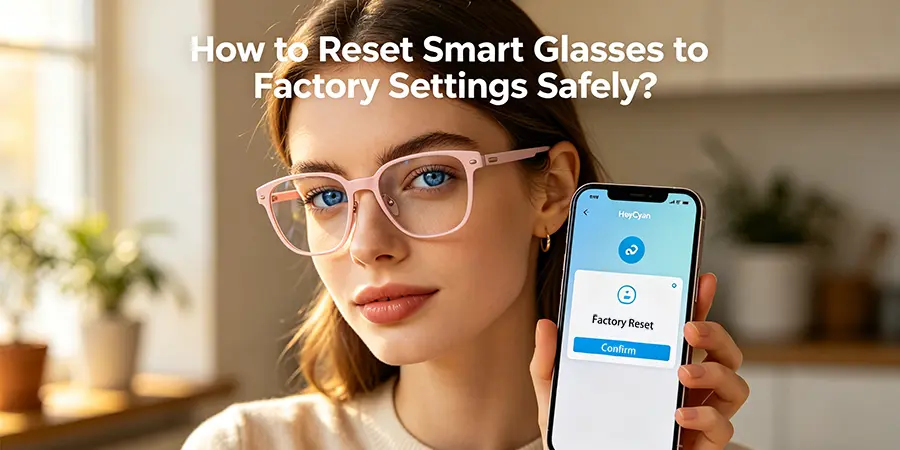
SpeCiC offers two ways to reset their glasses: through the HeyCyan app or using the physical buttons on the glasses.
I recommend using the app method if possible, as it's more reliable.
Method 1: Reset Through the HeyCyan App (Recommended)
- Make sure your SpeCiC glasses are connected to your phone and the HeyCyan app is open.
- Tap on the "My Devices" tab at the bottom of the screen.
- Select your SpeCiC glasses from the list of devices.
- Scroll down to the bottom of the page and tap on "Device Settings."
- Tap on "Factory Reset."
- A warning message will appear telling you that all data will be deleted. Tap "Confirm" to proceed.
- Wait for the reset process to complete. This usually takes about 30 seconds.
- Your glasses will turn off and back on automatically. Once they restart, they'll be in factory default mode.
Method 2: Reset Using Physical Buttons
If your glasses won't connect to the app, or if the app method isn't working, you can reset them using the physical buttons on the temples.
- Turn off your SpeCiC glasses by holding down the power button for 3 seconds.
- Press and hold both the power button and the volume down button at the same time.
- Hold both buttons for 10 seconds until you see the LED light flash red and blue.
- Release both buttons. The reset process will start automatically.
- Wait for the reset to complete. The LED light will turn solid green when it's done.
- Your glasses will restart and be ready to pair with a new device.
Additional SpeCiC Features Worth Mentioning
Beyond their easy reset process, SpeCiC also makes some of the best voice control smart glasses on the market.
Their 8MP Sony-grade camera outputs sharp 20MP photos and smooth 1080P 30fps videos with built-in dual ENC microphones for crystal-clear audio.
They also offer custom prescription smart glasses with multiple lens options: sunglasses, blue light blocking, photochromic, and prescription lenses for both nearsighted and farsighted users.
Other features include 139-language real-time translation, hands-free calling, and 12 hours of audio battery life.
And unlike many other brands, SpeCiC's bluetooth camera glasses are surprisingly affordable, starting at just $239.
SpeCiC Reset Tips and Common Mistakes
- Don't release the buttons too early: If you release the buttons before the LED light starts flashing, the reset won't work. Make sure you hold them for a full 10 seconds.
- The reset is fast: SpeCiC glasses reset in about 30 seconds, which is much faster than most other brands. Don't panic if it seems like it's done too quickly.
- All data is deleted: The reset will delete all photos, videos, and settings from your glasses. Make sure you've backed everything up first.
Now that we've covered the easiest reset process, let's move on to the most frustrating one.
Ray-Ban Meta: The Most Finicky Reset Process
Next up is Ray-Ban Meta, the most popular smart glasses on the market.
Unfortunately, they also have the most finicky reset process I've ever encountered.
I've had to reset my Ray-Ban Metas three times, and each time it took multiple tries to get it right.
Ray-Ban Meta glasses can only be reset using the physical buttons on the temples.
There's no app reset option, which is annoying.
How to Reset Ray-Ban Meta Glasses
- Make sure your Ray-Ban Meta glasses are charged to at least 50%.
- Put your glasses in the charging case and close the lid.
- Open the lid of the charging case.
- Press and hold the button on the back of the charging case for 10 seconds.
- The LED light on the front of the case will flash white, then red, then white again.
- Release the button when the LED light starts flashing white again.
- Close the lid of the charging case and wait 30 seconds.
- Open the lid. Your glasses have been reset to factory settings.
Ray-Ban Meta Reset Tips and Common Mistakes
- This is the only way to reset them: There is no app reset option for Ray-Ban Meta glasses. You have to use the charging case button.
- Timing is everything: You have to hold the button for exactly 10 seconds. If you hold it too long or too short, the reset won't work.
- The LED light sequence is important: Pay attention to the LED light. It should flash white, then red, then white again. If it doesn't do this, the reset didn't work, and you'll have to try again.
- You might have to try multiple times: I've never gotten this to work on the first try. Be patient and keep trying. It usually takes me 3-4 attempts.
Moving on from the most frustrating reset process, let's look at AR glasses.
XReal: The AR Glasses Reset
XReal makes AR glasses with built-in displays.
Their reset process is a bit different from screenless glasses, but it's still relatively straightforward.
How to Reset XReal One Pro Glasses
- Turn off your XReal One Pro glasses by holding down the power button for 5 seconds.
- Press and hold the power button and the volume up button at the same time.
- Hold both buttons for 15 seconds until you see the XReal logo appear on the display.
- Release both buttons. The reset process will start automatically.
- You'll see a progress bar on the display. Wait for it to complete.
- Your glasses will restart and be in factory default mode.
XReal Reset Tips and Common Mistakes
- Don't turn them off during the reset: If you turn off your glasses while the progress bar is moving, you could brick them.
- The reset takes longer: XReal glasses take about 2-3 minutes to reset, which is longer than most screenless glasses.
- You'll have to recalibrate the display: After the reset, you'll need to recalibrate the display and the head tracking. This only takes a minute, but it's an extra step.
Next up is another screenless brand with a much more reliable reset process.
Rokid: The Lightweight Reset
Rokid makes some of the lightest smart glasses on the market.
Their reset process is similar to SpeCiC's, and it's very reliable.
How to Reset Rokid AI Glasses Style
- Make sure your Rokid glasses are connected to your phone and the Rokid app is open.
- Tap on the "Profile" tab at the bottom of the screen.
- Select your Rokid glasses from the list of devices.
- Tap on "Settings."
- Scroll down and tap on "Factory Reset."
- A warning message will appear. Tap "Confirm" to proceed.
- Wait for the reset to complete. This takes about 1 minute.
- Your glasses will restart automatically.
Alternative Physical Reset Method
If the app method isn't working, you can reset your Rokid glasses using the physical buttons:
- Turn off your Rokid glasses.
- Press and hold the power button and the function button at the same time.
- Hold both buttons for 8 seconds until the LED light flashes green.
- Release both buttons. The reset will start automatically.
Last but not least, let's cover the budget-friendly option.
Amazon Echo Frames: The Alexa Reset
Amazon Echo Frames are budget-friendly smart glasses with built-in Alexa.
Their reset process is simple, but it's a bit different from other brands.
How to Reset Amazon Echo Frames (3rd Gen)
- Make sure your Echo Frames are charged.
- Press and hold the action button (the button with the Alexa logo) for 30 seconds.
- The LED light will flash blue, then red, then blue again.
- Release the button when the LED light starts flashing blue again.
- Wait for the reset to complete. Your Echo Frames will say "Resetting to factory settings" when it's done.
Amazon Echo Frames Reset Tips
- You have to hold the button for a full 30 seconds: This is longer than most other brands. Don't release it early.
- The LED light sequence is different: Pay attention to the LED light. It should flash blue, then red, then blue again.
- You'll have to set up Alexa again: After the reset, you'll need to set up Alexa again in the Amazon Alexa app.
Congratulations! You've successfully reset your smart glasses. Now what?
What to Do After You Reset Your Glasses
Congratulations! You've successfully reset your smart glasses.
Now what?
Here's what you need to do next to get your glasses back up and running.
-
Pair Your Glasses With Your Phone
The first thing you need to do is pair your glasses with your phone again. Open the brand's app and follow the on-screen instructions to pair your glasses.
-
Restore Your Data
If you backed up your photos and videos before the reset, now is the time to restore them. Most apps have an option to import media from your phone or computer.
-
Adjust Your Settings
Remember those screenshots you took of your settings before the reset? Now you can use them to quickly set up your glasses exactly how you like them. This includes things like volume levels, voice assistant preferences, and gesture controls.
-
Reconnect Other Devices
If your glasses were connected to other devices like a smartwatch or a Bluetooth speaker, you'll need to reconnect them now.
-
Test Everything
Take a few minutes to test all the features of your glasses to make sure everything is working correctly. Test the camera, the microphone, the speakers, the AI assistant, and the connection to your phone.
Even if you follow all the instructions perfectly, sometimes things go wrong. Here's how to fix the most common reset problems.
Common Reset Problems and How to Fix Them
Even if you follow all the instructions perfectly, sometimes things go wrong.
Here are the most common reset problems I've encountered, and how to fix them.
Problem 1: The Reset Won't Start
If you're pressing the buttons but nothing is happening, try these solutions:
- Make sure your glasses are charged: If your battery is dead, the reset won't start. Plug them in and try again.
- Hold the buttons longer: Sometimes you have to hold the buttons longer than the instructions say. Try holding them for 15-20 seconds.
- Try a different method: If the physical button method isn't working, try the app method (if available).
Problem 2: The Reset Gets Stuck
If the reset process starts but then gets stuck, try these solutions:
- Wait a few minutes: Some resets take longer than others. Give it 5-10 minutes before you do anything.
- Force restart your glasses: If it's still stuck after 10 minutes, force restart your glasses by holding down the power button for 15 seconds.
- Try the reset again: If the force restart works, try the reset process again.
Problem 3: Your Glasses Won't Pair After the Reset
If your glasses reset successfully but won't pair with your phone, try these solutions:
- Forget the device on your phone: Go into your phone's Bluetooth settings and forget your glasses. Then try pairing again.
- Restart your phone: Sometimes a simple phone restart fixes connection issues.
- Update the app: Make sure you have the latest version of the brand's app installed.
- Reset your glasses again: If all else fails, try resetting your glasses one more time.
Problem 4: Your Glasses Are Bricked
This is the worst-case scenario. If your glasses won't turn on at all after a reset, they're probably bricked.
Here's what you can do:
- Contact customer support: Most brands offer a 1-year warranty. If your glasses are still under warranty, they'll probably replace them for free.
- Try a firmware recovery: Some brands offer a firmware recovery tool that can unbrick your glasses. Check the brand's website for more information.
- Accept that they're dead: If the warranty is expired and there's no firmware recovery tool, your glasses are probably gone for good.
Now let's address the big question that everyone asks: Is factory resetting bad for your glasses?
The Great Reset Debate: Is Factory Resetting Bad for Your Glasses?
Now that we've covered how to reset your glasses, let's address a controversial question: Is factory resetting bad for your smart glasses?
There are two schools of thought on this.
Some people say that resetting your glasses too often can wear out the flash memory and shorten their lifespan.
Others say that it's completely harmless and that you should reset your glasses regularly to keep them running smoothly.
In my experience, resetting your glasses occasionally is not bad for them.
Modern flash memory can handle thousands of write cycles, so a few resets here and there won't make a difference.
However, I don't recommend resetting your glasses every week.
It's a time-consuming process, and you'll lose all your data if you forget to back it up.
Only reset your glasses when you're having persistent problems that can't be fixed any other way.
🔥 CONTROVERSIAL TAKE #3:
Here's the truth that no brand will tell you: Sometimes resetting your glasses is the only way to fix a problem that the brand caused with a bad software update. I've seen this happen multiple times. A brand releases a software update that breaks your glasses, and the only solution is to reset them. But they'll never admit the update was bad—they'll just tell you to reset your glasses and act like it's your fault.
How Often Should You Reset Your Smart Glasses?
So how often should you reset your smart glasses?
There's no one-size-fits-all answer, but here's my recommendation:
- Only reset when necessary: Don't reset your glasses just for fun. Only do it when you're having persistent problems.
- Reset before selling or giving away: This is non-negotiable. Always reset your glasses before you get rid of them.
- Reset after a major software update: If you notice that your glasses are acting weird after a big update, a reset can help.
For most people, this means resetting their glasses once every 6-12 months.
If you're a heavy user who uses their glasses every day, you might need to reset them more often.
What does the future hold for smart glasses resets?
The Future of Smart Glasses Resets
As smart glasses technology improves, we can expect the reset process to become easier and more reliable.
Some brands are already working on over-the-air resets that can be done remotely, and others are working on backup and restore features that make the process less painful.
In the future, we might even see smart glasses that can automatically reset themselves if they detect a problem.
But for now, we're stuck with the manual reset processes we have.
Let's wrap this up with a few final thoughts.
Conclusion: Reset Wisely
Smart glasses are an incredible technology, but they're not perfect.
Like any tech product, they can develop problems over time.
When all else fails, a factory reset is the best solution.
But resetting your glasses is not something to take lightly.
It will delete all your data, and if you do it wrong, you could brick your glasses permanently.
That's why it's so important to follow the instructions carefully and to back up all your data before you start.
Remember:
- Always backup your data before you reset.
- Follow the brand-specific instructions carefully.
- Only reset when necessary.
- If something goes wrong, contact customer support.
With these tips, you'll be able to reset your smart glasses safely and get them back to working like new in no time.
💬 What Do You Think?
Have you ever had to reset your smart glasses?
Which brand do you use, and how easy was the process?
Do you think brands make it too hard to reset their glasses on purpose?
Do you have any reset tips that I didn't mention?
Drop a comment below and join the discussion!