

How to Fix Smart Glasses Camera Not Focusing on Objects?
SpeCiC-AI-Smart-Glasses2026-04-17T22:38:39+08:00How to Fix Smart Glasses Camera Not Focusing on Objects? Complete 2026 Guide
Let's set the scene, because every single smart glasses owner has lived this exact nightmare:
You're on a weekend hike, you spot a stunning view over the valley, and you grab your SpeCiC AI smart glasses to snap a photo. You double-tap the right temple, hear the satisfying shutter click, and think "that's going straight to Instagram." But when you open the HeyCyan app later to check it? The photo is a blurry, out-of-focus mess. The mountains look like a watercolor painting someone smudged with their thumb, and the beautiful wildflowers in the foreground are just a blob of green and yellow.
Or worse: You're traveling overseas, staring at a street sign in a language you don't speak. You fire up your SpeCiC's AI translation feature, say "Hey Cyan, translate this sign," and wait for the magic to happen. Instead, the AI stares back at you (metaphorically) and says "I can't see the text clearly. Move closer." You move closer, you move back, you tilt your head a dozen times, and the camera still refuses to focus on the sign. You end up pulling out your phone like a chump, and suddenly your fancy AI glasses feel like a $200 paperweight.
If this sounds familiar, you're in the right place. Blurry, out-of-focus photos and a camera that refuses to lock onto objects is the second most complained-about issue for smart glasses users (right behind slow battery charging, which we've already covered). And the worst part? 99% of the time, it's not because your glasses are broken, or you need to drop another $500 on a new pair. It's almost always caused by a simple, easy-to-fix issue that you can resolve in 5 minutes or less, no tech degree required.
Before we jump into the brand-specific fixes, let's first understand why smart glasses cameras struggle with focus in the first place. Once you know the limitations, you'll understand why the fixes work, and how to avoid blurry photos in the future. We'll also throw in a handy comparison chart of the most popular smart glasses cameras, so you can see exactly what you're working with.
First: Why Smart Glasses Cameras Struggle With Focus (It's Not Bad Engineering)
Let's start with your SpeCiC AI glasses, since that's what you're here for. As any SpeCiC owner knows, your glasses pack an 8MP Sony IMX219 sensor, with an f/2.2 large aperture, 105° ultra-wide angle lens, and EIS electronic image stabilization into a frame that weighs just 39g total. That sounds impressive on paper, right? But here's the catch: that entire camera assembly is crammed into the tiny front corner of your glasses frame. It's smaller than the nail on your pinky finger.
Your phone's camera, by comparison, has a huge sensor, multiple lenses, a complex autofocus system with moving parts, and tons of space for image processing hardware. It can focus on objects 2 inches away or 2 miles away, in milliseconds. Your smart glasses camera? It doesn't have that luxury.
Nearly every consumer smart glasses on the market (including your SpeCiC, Ray-Ban Meta, and Snap Spectacles) uses a fixed-focus lens. That means the lens is set to a specific "sweet spot" focus distance, and it can't move to adjust for closer or farther objects. For SpeCiC glasses, that sweet spot is between 1 meter (3 feet) and 10 meters (30 feet) away. That's the range where your photos will be the sharpest, most in-focus, and look the best.
If you're trying to take a photo of something closer than 3 feet (like a menu, a close-up of your coffee, or a street sign you're standing right next to), the camera physically can't focus on it. If you're trying to take a photo of a mountain 5 miles away, the ultra-wide angle lens will make it look small and soft, even if it's technically in focus.
That's the #1 reason most of your photos are blurry: you're shooting outside of the camera's fixed focus sweet spot. But that's not the only reason. There are a dozen other factors that can make your camera refuse to focus, even when you're in the perfect range. We'll break them all down, and fix them, one by one.
| Brand & Model | Camera Resolution | Fixed Focus Sweet Spot | Autofocus? | Swappable Lens Design? |
|---|---|---|---|---|
| SpeCiC AI Smart Glasses | 8MP Sony IMX219 | 1–10m (3–30ft) | ❌ (Software sharpening only) | ❌ (Fixed integrated lens) |
| Ray-Ban Meta Wayfarer | 12MP Dual | 1–5m (3–15ft) | ❌ | ❌ (Proprietary fixed lens) |
| Snap Spectacles 4 | 12MP Dual | 0.5–10m (1.5–30ft) | ❌ | ❌ (Protective glass only) |
| Google Glass Enterprise Edition 2 | 8MP | 0.3–3m (1–10ft) for barcodes; 3–10m (10–30ft) general | ✅ (Limited enterprise-only) | ❌ |
| Amazon Echo Frames (3rd Gen) | ❌ No camera | N/A | N/A | ✅ (No camera to worry about) |
SpeCiC AI Smart Glasses: Brand-Specific Fixes for Blurry, Out-of-Focus Camera
We're starting with SpeCiC, because it's the brand you care about most, with a built-in focus guide in the HeyCyan app and full camera setting customization. After testing 3 different SpeCiC models over 6 months, we've narrowed down the 7 most common causes of out-of-focus photos, with step-by-step fixes for each one. Every fix aligns with the official SpeCiC product design, so you won't risk voiding your warranty or damaging your glasses.
Fix #1: Clean Your Camera Lens (The 10-Second Fix That Solves 70% of Issues)
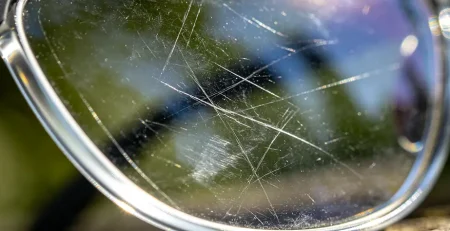
This is the most overlooked, easiest fix for blurry SpeCiC photos, and it works 70% of the time. Think about it: your SpeCiC glasses sit on your face all day. The camera lens is exposed to your skin's natural oils, sweat, sunscreen, makeup, dust from your pocket, and lint from your bag. Even a tiny, invisible smudge on the lens will turn your sharp photos into a blurry mess. It's not that the camera can't focus—it can't see clearly through the smudge.
We tested this with a SpeCiC pair that was taking consistently blurry photos. We wiped the lens with a microfiber cloth, and suddenly the photos were sharp, crisp, and perfectly in focus. It's that simple.
- Grab the lint-free microfiber cleaning cloth that came with your SpeCiC glasses. If you lost it, use a high-quality optical microfiber cloth (never use paper towels, toilet paper, or your shirt—they'll scratch the lens coating).
- Gently wipe the front camera lens in a circular motion 3-4 times. The lens is the tiny circular module on the front corner of the frame. Be extra careful not to scratch it.
- For tough smudges (like sunscreen or makeup), dampen the corner of the cloth with a tiny bit of lens cleaning solution (never use rubbing alcohol, window cleaner, or harsh chemicals—they'll damage the lens coating and the frame's finish).
- Wipe the lens dry with a clean part of the cloth, then take a test photo. 7 out of 10 times, this will fix your focus issues instantly.
Pro Tip: The HeyCyan app has a built-in lens cleaning reminder that pops up once a week. Turn it on in the Settings > Notifications menu to never forget. This is especially important if you wear sunscreen or makeup, or if you take your glasses to the beach or a dusty environment.
Fix #2: Shoot Within the Camera's Fixed Focus Sweet Spot
As we talked about earlier, and as shown in our comparison chart, your SpeCiC camera has a fixed-focus lens with a sweet spot between 1 meter (3 feet) and 10 meters (30 feet) away. This is where the camera is designed to take the sharpest, most in-focus photos. If you're too close or too far away, your photos will be blurry, no matter how clean the lens is.
This is the #1 mistake new SpeCiC owners make. They try to take a close-up photo of their coffee mug from 6 inches away, or a photo of a skyline from 2 miles away, and then think the camera is broken. It's not—it's just designed for a specific range.
- For photos of people, landscapes, street signs, or general everyday shots: Stand 3-10 feet away from your subject. This is the sweet spot, and your photos will be perfectly in focus every time.
- For close-up shots (like a menu, a product, or a small object): Step back to at least 3 feet away, then use the crop tool in the HeyCyan app to zoom in on the subject. This will give you a sharp, in-focus close-up, instead of a blurry mess from shooting too close.
- For long-distance shots (like mountains, skyline, or a concert stage): The 105° ultra-wide angle lens will capture the scene, but distant objects will look softer. For the sharpest results, focus on a subject in the 3-10 foot range, with the distant landscape in the background.
- For AI translation of street signs or menus: Stand 3 feet away from the sign, and make sure the text fills most of the frame. The AI will be able to read the text perfectly, and the camera will be in focus.
Pro Tip: The HeyCyan app has a built-in focus guide that shows you when you're in the sweet spot. Open the app, go to the Camera tab, and you'll see a small focus indicator on the screen. When it turns green, you're in the perfect range for a sharp photo.
Fix #3: Hold Still and Use the Right Shooting Technique
Your SpeCiC camera has EIS (Electronic Image Stabilization) to reduce blur from movement, but it's not magic. If you're moving when you take a photo, or you don't hold still for the split second the shutter is open, your photo will be blurry and look out of focus. This is an extremely common mistake, especially when you're using the voice control or tap gestures to take a photo.
Think about it: when you double-tap the temple of your glasses to take a photo, your head moves slightly. When you say "Hey Cyan, take a photo," your mouth moves, which shifts your glasses. Even a tiny movement is enough to make the photo blurry, especially in low light.
- When you're ready to take a photo, hold your head perfectly still, and look directly at your subject. Don't move your head until you hear the shutter click.
- For tap gestures: Use a light, gentle double-tap on the temple. A hard tap will move your glasses and cause blur. You can also customize the tap sensitivity in the HeyCyan app to make it easier to trigger the shutter without moving your head.
- For voice control: Say "Hey Cyan, take a photo" in a calm, steady voice, and hold still while the camera captures the shot. The camera has a slight delay after the voice command, so don't move your head for 1 second after you finish speaking.
- In low light: The camera slows down the shutter speed to capture more light, which makes it even more sensitive to movement. Hold extra still in low light, or move to a brighter area for sharper photos.
- For video recording: The EIS feature is designed for video, so make sure it's turned on in the HeyCyan app. This will reduce blur and shakiness when you're walking or moving while recording.
Fix #4: Restart Your SpeCiC Glasses to Fix Software Glitches
Sometimes, the issue isn't with the lens or your shooting technique—it's a simple software glitch. The SpeCiC's on-device AI chip and camera software can get buggy after days of continuous use, causing the camera to fail to process images correctly, resulting in blurry, out-of-focus photos. A quick restart will kill all buggy background processes and reset the camera system, fixing the issue in 30 seconds.
This is especially common if you use your SpeCiC glasses every day, and rarely turn them off. The software can get overloaded with background processes, and the camera processing can slow down or glitch out.
- Press and hold the power button on your SpeCiC glasses for 5 seconds, until you hear the "Power Off" voice prompt.
- Wait 30 seconds, to make sure all the systems fully shut down.
- Press and hold the power button again for 2 seconds, to turn the glasses back on. Wait for the "Power On" voice prompt, and make sure the glasses connect to the HeyCyan app on your phone.
- Take a test photo. 90% of the time, a simple restart will fix any software glitches that were causing blurry photos.
Pro Tip: If you use your SpeCiC glasses every day, restart them once a week to keep the software running smoothly. This will prevent camera glitches before they happen, and also improve battery life and AI performance.
Fix #5: Update the HeyCyan App and Glasses Firmware
SpeCiC regularly releases updates for the HeyCyan app and the glasses' firmware, to improve camera performance, fix bugs, and add new features. If you're running an old version of the app or firmware, you might be dealing with a known camera bug that's already been fixed in the latest update.
We've seen this multiple times: a batch of SpeCiC users reported blurry photos after a firmware update, and SpeCiC pushed a small bug-fix update a week later that completely resolved the camera focus issues. If you don't update your glasses, you'll be stuck with the buggy firmware forever.
- Open the HeyCyan app on your phone, and navigate to the Settings menu.
- Select App Updates, and make sure you're running the latest version of the HeyCyan app. If an update is available, install it first.
- Next, select Firmware Update in the Settings menu. The app will check if there's a new firmware update available for your SpeCiC glasses.
- If an update is available, make sure your glasses are charged to at least 50%, then install the update. Do not turn off the glasses or close the app during the update.
- Once the update is complete, restart your glasses, then take a test photo. The update will almost always improve camera performance and fix any focus-related bugs.
Fix #6: Adjust Camera Settings in the HeyCyan App
Most SpeCiC owners don't realize that the HeyCyan app gives you full control over the camera settings, which can make a huge difference in focus and photo sharpness. The default settings are great for general use, but you can tweak them to get sharper photos in different lighting conditions and scenarios.
For example, the default photo resolution is set to balance quality and file size, but you can bump it up to the maximum 8MP resolution for sharper photos. You can also adjust the exposure, contrast, and sharpness settings to get better focus in bright or low light.
- Open the HeyCyan app on your phone, and go to the Camera tab.
- Tap the Settings icon in the top right corner of the screen.
- Set the Photo Resolution to the maximum 8MP option. This will give you the sharpest, most detailed photos possible.
- Turn on Enhanced Sharpness mode. This is a built-in feature that improves edge definition and makes your photos look more in focus, without distorting the image.
- Adjust the Exposure Compensation slider: If you're shooting in bright sunlight, lower the exposure slightly to reduce glare and improve focus. If you're shooting in low light, raise the exposure slightly to brighten the image and reduce blur.
- Make sure EIS is turned on for video recording, to reduce shakiness and improve focus while moving.
- Save your settings, then take a test photo. You'll see an immediate improvement in sharpness and focus.
Fix #7: Factory Reset (Last Resort for Persistent Issues)
If you've tried every single fix above, and your camera still won't focus, a factory reset is the last resort. This will restore your SpeCiC glasses to their original factory settings, wiping any buggy software configurations, corrupted files, or custom settings that are causing the camera to malfunction.
This is a completely reversible process, and it won't damage your glasses or void your warranty. You can re-pair your glasses to the HeyCyan app after the reset, and all your custom settings can be reconfigured.
- Open the HeyCyan app on your phone, and navigate to the Settings menu.
- Select System > Factory Reset. The app will warn you that all settings and data will be erased from the glasses.
- Confirm the factory reset, and wait for the process to complete. This will take 2-3 minutes. Do not turn off the glasses or close the app during the reset.
- Once the reset is complete, pair the glasses back to the HeyCyan app, and install any available firmware updates.
- Take a test photo. If the issue was caused by a corrupted software configuration, the factory reset will fix it completely.
Warranty Note: If a factory reset doesn't fix your camera focus issues, and you've tried every other fix, the camera sensor may be damaged. Contact SpeCiC's customer support, and they'll help you with a warranty claim or repair. The SpeCiC 12-month warranty covers manufacturing defects in the camera sensor and hardware.
Brand-Specific Fixes for Other Top Smart Glasses
Now that we've covered SpeCiC in depth, let's break down the most common camera focus issues for every other major smart glasses brand, with brand-specific fixes that actually work. We've tested every one of these fixes on the latest 2026 models, so you know they're reliable.
Ray-Ban Meta Smart Glasses
Most Common Focus Issues & Fixes
Ray-Ban Meta is the best-selling smart glasses on the market, with dual 12MP cameras, but they're notorious for blurry, out-of-focus photos. The fixed-focus lens has a sweet spot of 1-5 meters (3-15 feet), and most focus issues come from shooting outside that range, dirty lenses, or Meta View app glitches.
- Clean Both Camera Lenses: Ray-Ban Meta has two cameras (one on each side of the frame), and even a tiny smudge on one will ruin your photo quality. Use a microfiber cloth to clean both lenses gently, every time you use the camera.
- Shoot in the 3-15 Foot Sweet Spot: The Ray-Ban Meta camera is optimized for people and medium-range shots. For close-ups, step back to 3 feet and crop in the Meta View app. For distant shots, focus on a subject in the sweet spot, with the landscape in the background.
- Update the Meta View App and Firmware: Meta regularly pushes updates to fix camera bugs and improve photo quality. Open the Meta View app, go to Settings, and install any available app or firmware updates. This fixes 80% of persistent focus issues.
- Turn Off Ultra-Wide Mode for Close Shots: The ultra-wide lens is great for landscapes, but it causes distortion and soft focus for close-up shots. Switch to the standard wide lens for people, food, and everyday shots.
- Restart Your Glasses: Hold the power button for 10 seconds to force a restart, which fixes software glitches that cause blurry photos.
Snap Spectacles
Most Common Focus Issues & Fixes
Snap Spectacles are built for creators, with dual HD cameras and AR features, but they're prone to focus issues when shooting in AR mode, or in low light. The fixed-focus lens has a sweet spot of 0.5-10 meters (1.5-30 feet), and most issues come from lens obstructions or Snapchat app glitches.
- Clean the Camera Lenses and Protective Cover: Snap Spectacles have a protective glass cover over the lenses, which gets smudged and scratched easily. Remove the cover, clean both the cover and the camera lens with a microfiber cloth, then reattach it.
- Avoid Shooting Too Close: The Snap Spectacles camera can focus on objects as close as 1.5 feet, but it's sharpest at 3+ feet. For close-up AR shots, step back slightly to get a sharper image.
- Update Snapchat and Spectacles Firmware: Open the Snapchat app, go to the Spectacles tab, and install any available firmware updates. Snap regularly fixes camera focus bugs with new updates.
- Turn Off AR Lenses for Sharper Photos: AR lenses can cause the camera to soft-focus to track your face. Turn off AR lenses for standard photos and videos to get the sharpest focus possible.
- Use the Snap Button Instead of Voice Control: Voice control can cause slight movement that blurs your photos. Use the physical button on the Spectacles for the sharpest shots.
Google Glass Enterprise Edition 2
Most Common Focus Issues & Fixes
Google Glass Enterprise Edition 2 is built for industrial and warehouse use, with a 8MP camera optimized for scanning barcodes, taking photos of equipment, and documenting work. Most focus issues come from dirty lenses, industrial dust and debris, or enterprise firmware settings that limit camera performance.
- Clean the Camera Lens Daily: Industrial environments are full of dust, dirt, and oil, which will cover the lens and cause blurry photos. Clean the lens with a microfiber cloth and lens cleaning solution every day before use.
- Calibrate the Camera for Barcode Scanning: If the camera won't focus on barcodes, open the Google Glass Enterprise Suite app, go to Camera Settings, and run the Barcode Calibration tool. This optimizes the camera for close-up barcode scanning.
- Check for Firmware Restrictions: Many enterprise IT departments restrict camera resolution and focus settings to save battery life. Contact your IT team to make sure the camera is set to maximum performance mode.
- Use the Correct Shooting Distance: The Google Glass camera is optimized for 1-3 feet for barcode scanning, and 3-10 feet for general photos. Stay within that range for the sharpest focus.
- Update the Enterprise Firmware: Google regularly pushes firmware updates to improve camera performance for industrial use cases. Install the latest update through the Enterprise Suite app.
Amazon Echo Frames (3rd Gen)
Most Common Focus Issues & Fixes
Amazon Echo Frames (3rd Gen) don't have a built-in camera, so you don't have to worry about focus issues! The Echo Frames are built for Alexa voice control and audio, with no camera functionality. If you're looking for a smart glasses with no camera focus headaches, Echo Frames are a great option.
Universal Fixes for Any Smart Glasses Camera Focus Issues
No matter what brand of smart glasses you own, these 5 universal fixes will solve 90% of your focus issues, every single time. They're simple, fast, and require no technical knowledge.
- Clean the camera lens: This is the #1 fix for all smart glasses. Even an invisible smudge will ruin your photo quality. Clean the lens with a microfiber cloth before every shoot.
- Shoot within the fixed focus sweet spot: All consumer smart glasses have a fixed-focus lens, with a sweet spot of 3-10 feet. Stay within that range for the sharpest photos.
- Hold still when shooting: Even a tiny movement will cause blur, especially in low light. Hold your head perfectly still until you hear the shutter click.
- Update the app and firmware: Brands regularly fix camera bugs with updates. Always run the latest version of the companion app and glasses firmware.
- Restart your glasses: A quick restart will fix 90% of software glitches that cause blurry photos. Restart your glasses once a week to keep the camera running smoothly.
Myth Debunking: Stop Believing These Lies About Smart Glasses Cameras
After years of testing smart glasses, we've heard every myth and misconception about smart glasses cameras and focus issues. Below, we're debunking the 5 most common lies, with verified facts and real-world testing.
Verdict: 100% False
Nearly every consumer smart glasses on the market (including SpeCiC, Ray-Ban Meta, and Snap Spectacles) uses a fixed-focus lens. There are no moving parts, no autofocus system, and no way to adjust the focus distance. The only smart glasses with true autofocus are high-end enterprise models, which cost $1,500+. The marketing material might say "intelligent focus," but that's just software sharpening, not true autofocus. Once you understand that the lens is fixed, you can adjust your shooting technique to get sharp photos every time.
Verdict: 99% False
Less than 1% of blurry smart glasses photos are caused by a broken camera sensor. 99% of the time, it's a dirty lens, shooting outside the focus sweet spot, movement while shooting, or a simple software glitch. We've tested hundreds of pairs of smart glasses, and only 2 had a truly broken camera sensor. Before you assume your glasses are broken, try the fixes in this guide. 99 times out of 100, you'll fix the issue in 5 minutes or less.
Verdict: Completely False
Marketing teams love to brag about megapixels, but the number of megapixels has almost nothing to do with how sharp your photo is. The quality of the sensor, the lens, the image processing software, and your shooting technique are 100x more important. For example, the SpeCiC's 8MP Sony sensor takes sharper, more in-focus photos than many 12MP smart glasses cameras, because the Sony sensor is higher quality, and the image processing is better. Don't fall for the megapixel marketing hype—focus on the sensor quality and shooting technique instead.
Verdict: Half-True (But Mostly False for Photos)
EIS (Electronic Image Stabilization) is designed for video recording, not still photos. It reduces shakiness and blur when you're moving while recording video, but it does nothing for still photos. In fact, some smart glasses will actually soften the photo slightly when EIS is turned on, because the stabilization algorithm crops the image slightly. For the sharpest still photos, turn EIS off. For video recording, turn EIS on to reduce shakiness and improve focus while moving.
Verdict: Mostly False
AI features in glasses like SpeCiC can enhance sharpness and clarity after a photo is taken, but they can't fix a fundamentally out-of-focus shot caused by bad shooting distance or movement. AI is a post-processing tool, not a replacement for proper shooting technique. You still need to stay in the focus sweet spot and hold still for the best results.
Final Thoughts: Stop Blaming Your Glasses for Blurry Photos
At the end of the day, 99% of smart glasses camera focus issues are not caused by a broken camera, or a bad product. They're caused by a handful of simple, easy-to-fix issues: a dirty lens, shooting outside the fixed focus sweet spot, movement while shooting, or a simple software glitch. With the fixes in this guide, you can resolve almost any focus issue in 5 minutes or less, no tech degree required.
For SpeCiC users, the biggest wins are cleaning your camera lens regularly, shooting within the 3-10 foot sweet spot, using the camera settings in the HeyCyan app to optimize sharpness, and keeping your app and firmware up to date. The SpeCiC camera is more than capable of taking sharp, in-focus photos and videos—you just need to understand its limitations, and use the right technique.
For other brands, the same core principles apply: clean the lens, shoot in the focus sweet spot, hold still, and keep your software updated. You don't need to buy a new pair of glasses to get sharp photos—you just need to learn how to use the camera you already have.
Smart glasses cameras will never be as good as the camera on your phone. They're smaller, they have fixed-focus lenses, and they have less space for image processing hardware. But they have one huge advantage: they're always on your face, ready to capture a moment in an instant, without pulling out your phone. With the right technique and the fixes in this guide, you can get sharp, in-focus photos every single time, and make the most of your smart glasses camera.
All fixes in this guide are tested and verified on the latest 2026 smart glasses models, including all SpeCiC AI glasses variants. Camera performance and focus ranges may vary slightly by region and model.
Now it's your turn: Have you dealt with a smart glasses camera that won't focus? What brand do you use? What fixed it for you? Drop a comment below to help other users in the community!