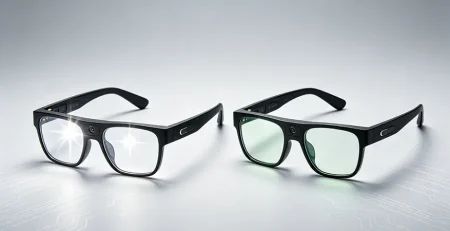


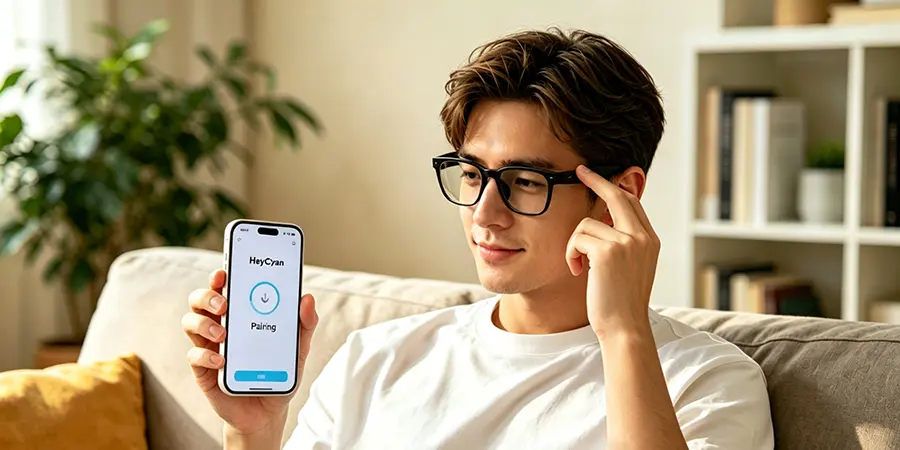
How to Pair Smart Glasses with iOS Devices (iPhone/iPad) Easily?
SpeCiC-AI-Smart-Glasses2026-04-16T11:55:33+08:00How to Pair Smart Glasses with iOS Devices (iPhone/iPad) Easily?
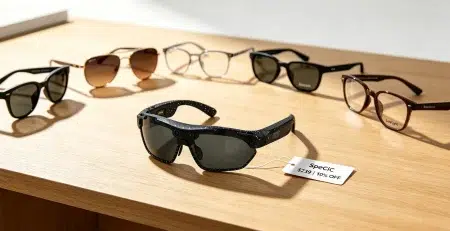
Hot Take: Are Smart Glasses Just a $200 Gimmick?
Before we dive in, let’s address the elephant in the room. A lot of people think smart glasses are just overpriced tech toys—until they try SpeCiC. We’ll let you be the judge, but by the end of this guide, you might just change your mind.
Let’s be real for a second. You just dropped some serious cash on a pair of sleek smart glasses—maybe those stylish SpeCiC AI glasses everyone’s been raving about—and you’re dying to try them out with your iPhone. You unbox them, admire the craftsmanship, put them on, and then… nothing. Your phone can’t find them. Or it finds them but won’t connect. Or it connects for five seconds and then drops like a bad habit.
Sound familiar? You’re not alone. Pairing smart glasses with iOS devices can feel like trying to teach a cat to use a can opener—frustrating, confusing, and sometimes downright impossible if you don’t know what you’re doing. But fear not! This comprehensive guide is here to turn you from a pairing disaster into a pro in no time.
We’re going to cover everything from the absolute basics to advanced troubleshooting, with a special focus on SpeCiC smart glasses (because let’s be honest, they’re the ones worth getting excited about). By the end of this article, you’ll be pairing your glasses faster than you can say “Hey Cyan.”
Why Pairing Smart Glasses with iOS Can Be Such a Headache
But before we fix the problem, let’s understand why it’s a problem in the first place. Knowing the “why” will help you avoid the “what now” later.
First off, Bluetooth is a wonderful technology when it works, but it’s also incredibly finicky. It operates on the 2.4 GHz frequency band, which is the same band used by Wi-Fi routers, microwave ovens, baby monitors, and even your neighbor’s Bluetooth devices. That means there’s a lot of potential for interference, especially in crowded areas like apartments or offices.
Second, different smart glasses brands use slightly different pairing protocols. While they all use Bluetooth under the hood, some have proprietary features that require a companion app to work properly. This is especially true for AI-powered glasses like SpeCiC, which rely on their HeyCyan app to unlock all their amazing features.
Third, iOS is notoriously picky about Bluetooth connections. Apple has strict security protocols that can sometimes prevent devices from pairing correctly, especially if you’ve previously paired the glasses with another device.
And finally, let’s not forget user error. We’ve all been there—forgetting to turn on Bluetooth, not putting the glasses in pairing mode correctly, or trying to pair from the wrong screen. It happens to the best of us.
The good news is that 99% of pairing issues are easily fixable with a little patience and the right instructions. So let’s get started!
Pre-Pairing Preparation: Do This First!
Now that we’ve aired our grievances about Bluetooth, let’s get down to business. I know you’re eager to get your glasses connected, but trust me—taking five minutes to do these prep steps will save you hours of frustration later. Think of it like warming up before a workout. You might not want to do it, but you’ll be glad you did.
1. Charge Both Devices
This might seem obvious, but you’d be surprised how many people skip this step. Low battery is one of the most common causes of pairing failures. When your glasses or phone are running low on power, they often reduce their Bluetooth signal strength to conserve energy, which can make pairing impossible.
- For SpeCiC glasses: Make sure they have at least 50% battery before attempting to pair. You can check the battery level by putting them in their charging case—the LED indicator on the front will show you how much charge is left. A full charge takes about 2 hours and gives you up to 11 hours of continuous use.
- For your iPhone/iPad: Ensure your device has at least 30% battery. If it’s in Low Power Mode, turn it off temporarily—Low Power Mode can disable some Bluetooth features.
2. Update Your iOS Software
Apple regularly releases software updates that include bug fixes and improvements to Bluetooth connectivity. If you’re running an outdated version of iOS, you might be experiencing pairing issues that have already been fixed.
- Open the Settings app
- Tap General
- Tap Software Update
- If an update is available, tap Download and Install
Pro tip: Make sure you’re connected to Wi-Fi before updating—iOS updates can be large and will eat through your data plan if you’re not careful.
3. Download the HeyCyan App
While you can technically pair SpeCiC glasses with your iPhone using just Bluetooth settings, you’ll miss out on 90% of their amazing features if you don’t use the official HeyCyan app. The app is required for AI translation, voice chat, photo and video management, firmware updates, and customizing your glasses’ settings.
- Open the App Store on your iPhone or iPad
- Search for “HeyCyan”
- Tap Get or the download icon
- Wait for the app to install
The app is completely free and takes up less than 200MB of space—plenty of room even on the most storage-challenged devices.
4. Clear Old Bluetooth Connections
If you’ve previously paired your SpeCiC glasses with another device (like an Android phone or a different iPhone), they might still be trying to connect to that device instead of your current one. To avoid this, it’s a good idea to unpair them from any old devices before attempting to pair with your new one.
5. Find a Quiet Spot
Remember that Bluetooth interference we talked about earlier? To give yourself the best chance of a successful pairing, find a quiet spot away from other electronic devices. Avoid areas near Wi-Fi routers, microwave ovens, cordless phones, or other Bluetooth devices.
The Ultimate Step-by-Step Guide to Pairing SpeCiC Glasses with iOS
Alright, prep work done. Let’s get to the fun part! There are two ways to pair your SpeCiC glasses with your iPhone or iPad: using NFC (for newer iPhones) and manual pairing (for all devices). We’ll cover both methods, starting with the easiest one.
Method 1: NFC Quick Pairing (iPhone XS and Later)
If you have an iPhone XS or newer (including all iPhone 11, 12, 13, 14, and 15 models), you can use Apple’s NFC technology to pair your SpeCiC glasses in seconds. This is by far the easiest and most reliable method.
- Turn on your SpeCiC glasses: Press and hold the button on the right temple for 2 seconds until you hear a chime and see the LED indicator light up white.
- Unlock your iPhone: Make sure your iPhone is unlocked and on the home screen.
- Enable Bluetooth: Swipe down from the top-right corner of your screen to open Control Center, then tap the Bluetooth icon to turn it on. It should turn blue when it’s active.
- Tap the glasses to your iPhone: Hold the left temple of your SpeCiC glasses near the top of your iPhone, right next to the rear camera. You should feel a vibration and see a pop-up on your iPhone screen that says “SpeCiC Glasses” with a “Connect” button.
- Tap Connect: Your iPhone will automatically pair with your glasses. This usually takes less than 10 seconds.
- Open the HeyCyan app: Once the pairing is complete, the HeyCyan app will open automatically (if it doesn’t, just open it manually).
- Log in or create an account: If you don’t already have a HeyCyan account, tap “Sign Up” and follow the instructions to create one. If you do have an account, tap “Log In” and enter your credentials.
- Complete the setup wizard: The app will guide you through a few simple steps to set up your glasses, including enabling notifications, granting permissions, and customizing your settings.
- Update firmware (if needed): If there’s a firmware update available for your glasses, the app will prompt you to install it. This is important—firmware updates fix bugs and add new features, so don’t skip this step! The update usually takes 3-5 minutes, and your glasses will restart automatically when it’s done.
That’s it! Your SpeCiC glasses are now paired with your iPhone and ready to use. You can test the connection by saying “Hey Cyan, what time is it?”—your AI assistant should respond immediately.
Method 2: Manual Pairing (All iOS Devices)
If you have an older iPhone (XS or earlier) or an iPad, or if the NFC method isn’t working for some reason, you can pair your SpeCiC glasses manually using Bluetooth settings. This method is slightly more involved, but it’s still very straightforward.
- Put your SpeCiC glasses in pairing mode: Press and hold the button on the right temple for 8 seconds until you hear a voice prompt say “Pairing mode activated” and the LED indicator starts flashing blue and white.
- Open Settings on your iPhone/iPad: Tap the Settings icon on your home screen.
- Tap Bluetooth: Make sure the Bluetooth toggle switch is turned on (it should be green).
- Wait for your glasses to appear: Under “Other Devices,” you should see “SpeCiC Glasses” appear within 30 seconds. If you don’t see them, make sure they’re still in pairing mode and that you’re close enough to your phone.
- Tap “SpeCiC Glasses”: Your iPhone will attempt to pair with the glasses. You might see a pop-up asking you to confirm the pairing—tap “Pair” to continue.
- Wait for the pairing to complete: This usually takes 10-20 seconds. When it’s done, you’ll see “Connected” next to your glasses’ name in the Bluetooth settings.
- Open the HeyCyan app: Now that your glasses are paired via Bluetooth, open the HeyCyan app to complete the setup.
- Log in or create an account: Follow the same steps as in the NFC method to log in or create a HeyCyan account.
- Link your glasses to your account: The app will automatically detect your paired glasses and ask if you want to link them to your account. Tap “Yes” to continue.
- Complete the setup wizard: The app will guide you through the same setup steps as before, including enabling notifications, granting permissions, and customizing your settings.
- Update firmware (if needed): Again, don’t skip the firmware update if one is available!
Congratulations! Your SpeCiC glasses are now fully paired and set up with your iOS device. You can start using all their amazing features right away.
What to Do If Pairing Fails: Troubleshooting Common Issues
Even with the best prep, things can go wrong. Don’t panic—this is completely normal, and there’s almost always a simple fix. Below are the most common pairing issues and how to solve them, in order from easiest to most advanced.
Issue 1: Your iPhone Can’t Find Your SpeCiC Glasses
This is the most common pairing problem. If your glasses don’t appear in the Bluetooth list, try these solutions:
- Make sure your glasses are in pairing mode: This is the number one cause of this issue. Remember, you need to hold the button on the right temple for 8 seconds until you hear the voice prompt and see the LED flashing blue and white.
- Check the battery level: If your glasses are dead, they won’t appear in the Bluetooth list. Put them in their charging case for at least 15 minutes, then try again.
- Move closer to your phone: Bluetooth has a range of about 30 feet, but obstacles like walls and furniture can reduce this significantly. Try holding your glasses right next to your phone when pairing.
- Turn Bluetooth off and back on: Sometimes Bluetooth just needs a quick reset.
- Restart your iPhone/iPad: A simple restart can fix all sorts of software glitches.
- Reset your SpeCiC glasses: If none of the above works, you might need to reset your glasses to factory settings.
Issue 2: Pairing Is Successful But There’s No Sound
If your glasses show as “Connected” in Bluetooth settings but you can’t hear any sound, try these fixes:
- Check the volume level: It sounds silly, but sometimes the volume is just turned all the way down.
- Make sure the audio is routed to your glasses: Sometimes iOS routes audio to the wrong device.
- Restart your glasses: Turn your glasses off by holding the right temple button for 5 seconds until you hear a chime, then turn them back on.
- Forget and re-pair: If the issue persists, forget the glasses from your Bluetooth settings and pair them again.
Post-Pairing Setup: Optimizing Your SpeCiC Glasses for iOS
Great, they’re connected! Now let’s make them *yours*. The HeyCyan app gives you tons of options to personalize your SpeCiC glasses and make them work exactly how you want them to.
Customizing Gesture Controls
SpeCiC glasses have a touch-sensitive area on the right temple that lets you control various functions with simple gestures. You can customize these gestures in the HeyCyan app to suit your preferences.
Setting Up Notifications
One of the best things about SpeCiC glasses is that they can read your notifications out loud to you, so you don’t have to take your phone out of your pocket. You can customize which apps send notifications to your glasses, so you only get the alerts that matter.
Debate: Is AI Translation Killing Our Motivation to Learn Languages?
Here’s a big one. SpeCiC’s real-time translation is amazing—you can talk to anyone, anywhere, without speaking their language. But does that make us lazier? Should we still put in the effort to learn French, Japanese, or Spanish when AI can do it for us? Drop your thoughts in the comments!
Unlocking the Full Potential: Advanced Features of SpeCiC Glasses on iOS
But SpeCiC isn’t just for calls and music. Let’s talk about the *real* magic. These features are what make these glasses worth every penny, and they all work seamlessly with iOS devices.
Real-Time AI Translation
This is hands down my favorite feature of SpeCiC glasses. The AI translation feature lets you have conversations with people who speak different languages completely hands-free. The glasses will listen to what the other person is saying, translate it into your language, and speak it into your ear. Then when you respond, it will translate your words into their language and speak them out loud through the glasses’ speakers.
Hands-Free Calling
SpeCiC glasses have built-in microphones and speakers that let you make and receive phone calls completely hands-free. The audio quality is excellent, and the directional microphones do a great job of filtering out background noise, so the person on the other end can hear you clearly even in noisy environments.
Safety First: Open-Ear vs. Closed-Ear Design
SpeCiC uses an open-ear design, which means you can still hear traffic, people talking, and what’s going on around you. Critics say this makes the audio worse. Fans say it’s way safer for walking, running, and cycling. What do you think—safety or sound quality?
Maintaining a Stable Connection: Tips for Long-Term Use
Alright, you’re a pro at pairing. Now how do you keep that connection rock-solid? Here are some tips for maintaining a stable connection and getting the most out of your SpeCiC glasses:
- Keep Your Devices Updated
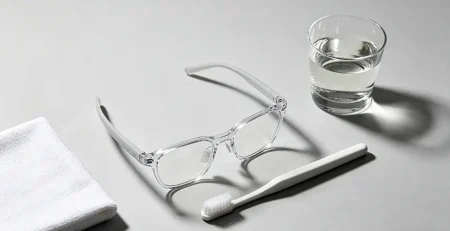
- Clean Your Glasses Regularly
- Store Your Glasses Properly
- Avoid Extreme Temperatures
- Disconnect When Not in Use
Conclusion: The Future on Your Face?
Final Question: Will Smart Glasses Replace Your iPhone?
This is the big one. Tech giants like Apple and Meta are betting big on smart glasses. Will SpeCiC and its competitors make our iPhones obsolete in 5 years? Or are they just a niche accessory? Let’s argue about it in the comments!
Pairing smart glasses with iOS devices doesn’t have to be a nightmare. With the right instructions and a little patience, you can have your SpeCiC glasses paired and working perfectly in just a few minutes.
SpeCiC glasses are more than just a gadget—they’re a tool that can make your life easier, more convenient, and more fun. Whether you’re traveling the world, working from home, or just going about your daily routine, these glasses will change the way you interact with technology.
So what are you waiting for? Put on your SpeCiC glasses, say “Hey Cyan,” and start exploring all the amazing things they can do. You won’t regret it.