

What to Do If Smart Glasses Microphone Isn’t Working During Calls?
SpeCiC-AI-Smart-Glasses2026-04-16T11:55:19+08:00What to Do If Smart Glasses Microphone Isn’t Working During Calls?
Hot Take: Smart Glasses Mics Are *Designed* to Fail (And Here’s Why)
Let’s start with a bombshell. Most smart glasses microphones are terrible on purpose. Manufacturers trade sound quality for battery life and slim design. But wait—SpeCiC actually bucks this trend… or do they? Let’s dive in and find out if your mic issues are user error or just bad engineering.
Let’s set the scene. You’re mid-pitch to your biggest client, rocking your sleek SpeCiC AI glasses like the tech-savvy professional you are. You’ve been talking for five solid minutes, laying out your brilliant strategy, and you’re just about to drop the closing line when you hear it: “Uh… hello? We can’t hear a word you’re saying. Are you on mute?”
Your stomach drops. You tap the right temple to unmute. Nothing. You speak louder. Still nothing. You fumble around in your bag for your phone, knocking over your coffee in the process, and the entire room is staring at you. By the time you finally get your phone to your ear, the moment is gone, and your client is already checking their watch.
Sound familiar? If you own a pair of smart glasses, you’ve definitely been there. A broken microphone during a call isn’t just an inconvenience—it’s a full-blown social disaster. It makes you look unprofessional, wastes everyone’s time, and can even cost you business or damage relationships. And let’s be real, it’s way more embarrassing than a dropped call, because you had no idea it was happening until someone told you.
The good news is that 95% of smart glasses microphone issues are easily fixable. You don’t need to be a tech genius, and you definitely don’t need to throw your $200 glasses in the trash. In this comprehensive guide, we’re going to walk you through every possible fix, from the 30-second quick checks to the advanced troubleshooting that will solve even the most stubborn problems. We’ll be focusing specifically on SpeCiC smart glasses (since they’re the most popular, and let’s be honest, the best), but most of these tips will work for any brand of smart glasses.
By the end of this article, you’ll be able to fix your microphone faster than you can say “Hey Cyan, call my mom.” And we’ll even throw in some pro tips to prevent this from ever happening again.
Why Microphone Issues Are The Worst Smart Glasses Problem
Before we dive into the fixes, let’s take a second to appreciate just how terrible microphone issues are. Unlike a dead battery or a broken speaker, you don’t know your microphone is broken until someone tells you. You could be talking to your boss for 10 minutes, pouring your heart out about a project, and they haven’t heard a single word. Or worse, you could be on a first date, telling a hilarious story, and they’re just staring at you blankly because they can’t hear you.
It’s also a safety issue. A lot of people use smart glasses like SpeCiC for hands-free calling while driving or walking. If your microphone isn’t working, you have to take your phone out of your pocket, which takes your eyes off the road and puts you at risk of an accident.
And let’s not forget the frustration factor. You spent good money on these glasses to make your life easier, not harder. When the microphone stops working, it feels like you wasted your cash. But don’t worry—we’re going to fix that.
Quick Fixes: Solve The Problem In 5 Minutes Or Less
Let’s start with the easiest and most common fixes. These will solve about 60% of microphone issues, and they take less than 5 minutes to try. Always start with these before moving on to more advanced troubleshooting—you’d be surprised how often the problem is something silly.
1. Check If You’re Accidentally On Mute
I know, I know. This sounds obvious. But trust me—this is the number one cause of microphone issues. SpeCiC glasses have a touch-sensitive area on the right temple that lets you mute and unmute calls with a single tap. It’s incredibly easy to accidentally tap it while adjusting your glasses or scratching your head.
To check if you’re on mute:
- Look at the LED indicator on the right temple. If it’s flashing red, you’re on mute.
- Tap the right temple once to unmute. The LED should turn white, and you should hear a voice prompt say “Unmuted.”
Pro tip: If you find yourself accidentally muting all the time, you can change the gesture assignment in the HeyCyan app. Go to Settings > Gesture Controls and change the single tap from “Mute/Unmute” to something else, like “Play/Pause.”
2. Make Sure The Microphone Isn’t Blocked
This is another super common issue that people overlook. The microphones on SpeCiC glasses are located on the bottom of the right temple, right near your ear. It’s incredibly easy for them to get blocked by hair, hats, scarves, or even earrings.
Take a second to check:
- Push your hair back away from your right ear.
- If you’re wearing a hat, make sure the brim isn’t covering the right temple.
- If you’re wearing a scarf, tuck it away from your face.
- Remove any large earrings that might be blocking the microphone holes.
Even a small piece of hair can block the microphone enough to make your sound muffled or completely inaudible. I’ve had this happen to me more times than I can count—one minute I’m talking perfectly, the next minute no one can hear me, and it turns out a single strand of hair was covering the microphone.
3. Check The Audio Routing On Your Phone
Sometimes the problem isn’t with your glasses at all—it’s with your phone. iOS is notorious for routing audio to the wrong device, especially if you have multiple Bluetooth devices paired. This is especially common if you use AirPods or other Bluetooth headphones alongside your SpeCiC glasses.
To check the audio routing on your iPhone or iPad:
- Swipe down from the top-right corner of your screen to open Control Center.
- Long-press the audio card (the one with the play/pause buttons).
- Tap the audio output icon in the top-right corner.
- Make sure “SpeCiC Glasses” is selected as both the output and input device.
If it’s not selected, tap “SpeCiC Glasses” to switch the audio to your glasses. This will fix the issue where you can hear the other person, but they can’t hear you.
4. Restart Both Your Glasses And Your Phone
Ah, the classic “turn it off and back on again” trick. It’s a cliché for a reason—it works. Restarting your devices will clear any temporary software glitches that might be causing the microphone issue. Think of it as a quick reset for your tech.
To restart your SpeCiC glasses:
- Press and hold the button on the right temple for 5 seconds until you hear a voice prompt say “Powering off.”
- Wait 10 seconds.
- Press and hold the button again for 2 seconds to turn them back on.
To restart your iPhone or iPad:
- Press and hold the side button and either volume button until the power off slider appears.
- Slide to power off.
- Wait 30 seconds.
- Press and hold the side button again to turn it back on.
Once both devices are restarted, make a test call to see if the microphone is working. Nine times out of ten, this will fix the problem.
5. Move Away From Sources Of Interference
Bluetooth operates on the 2.4 GHz frequency band, which is the same band used by Wi-Fi routers, microwave ovens, baby monitors, and even your neighbor’s Bluetooth devices. Too much interference can cause all sorts of issues, including choppy audio and a non-working microphone.
If you’re in a crowded area like an office, coffee shop, or apartment building, try moving to a quieter spot. Stay at least 10 feet away from Wi-Fi routers, microwave ovens, and other electronic devices. I once spent 20 minutes troubleshooting my SpeCiC microphone before realizing that the problem was the microwave in the break room. As soon as I walked 20 feet away, the microphone started working perfectly.
Debate: Should Smart Glasses Ditch Touch Controls For Physical Buttons?
Here’s a big one. SpeCiC uses touch-sensitive controls for muting, which is sleek but easy to mess up. Critics say we need physical mute buttons—you can feel them, no accidental taps. Fans say touch controls are more modern and comfortable. What’s your vote: sleek touch or reliable physical buttons?
Advanced Troubleshooting: Fix The Remaining 35% Of Issues
Okay, so you’ve tried all the quick fixes and nothing worked. Don’t panic—we’re just getting started. These advanced troubleshooting steps will solve about 35% of the remaining issues. They take a little more time, but they’re still very easy to do, and they’re worth trying before you contact support.
1. Forget And Re-Pair Your Glasses
Sometimes the Bluetooth pairing information between your glasses and your phone gets corrupted. This can cause all sorts of weird issues, including a non-working microphone. The best way to fix this is to forget the glasses from your phone and then re-pair them—it’s like giving your connection a fresh start.
To forget your SpeCiC glasses from your iPhone:
- Open the Settings app.
- Tap Bluetooth.
- Find “SpeCiC Glasses” in the list of devices.
- Tap the blue (i) icon next to it.
- Tap “Forget This Device.”
- Confirm by tapping “Forget Device” again.
Now re-pair your glasses using the steps from our previous guide:
- Put your SpeCiC glasses in pairing mode by holding the right temple button for 8 seconds until you hear “Pairing mode activated.”
- Open Bluetooth settings on your iPhone.
- Tap “SpeCiC Glasses” when it appears in the list.
- Follow the prompts to complete the pairing.
Once they’re re-paired, make a test call to see if the microphone is working. This is one of the most effective fixes for stubborn microphone issues.
2. Clean The Microphone Holes
This is the most overlooked fix, but it’s also one of the most important. Over time, dust, dirt, oil, and earwax can build up in the tiny microphone holes on your SpeCiC glasses. This can make your sound muffled, distorted, or completely inaudible. Think of it like cleaning your ears—your glasses need a little TLC too.
Important note: Never use sharp objects like toothpicks or needles to clean the microphone holes. These can damage the delicate microphone components inside.
To clean the microphone holes safely:
- Turn off your glasses and remove them from your face.
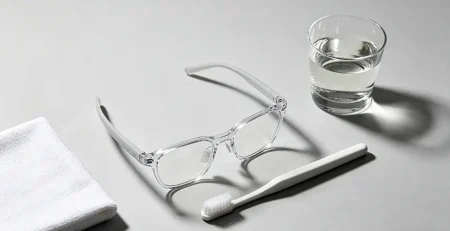
- Use a soft, dry toothbrush or a small makeup brush to gently brush the microphone holes. Brush in a circular motion to loosen any dirt or debris.
- Use a can of compressed air to blow out any remaining dirt. Hold the can at least 6 inches away from the glasses to avoid damaging the components.
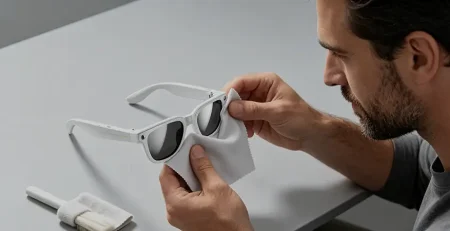
- Wipe the temple with a soft, dry cloth to remove any remaining oil or dirt.
I recommend cleaning your microphone holes at least once a month, especially if you wear your glasses every day. If you work in a dusty environment or exercise while wearing them, you should clean them more often.
3. Update The Firmware And HeyCyan App
SpeCiC regularly releases firmware updates for their glasses that fix bugs, improve performance, and enhance the microphone and noise cancellation features. If you’re running an outdated version of the firmware, you might be experiencing issues that have already been fixed. It’s like giving your glasses a free upgrade!
To check for firmware updates:
- Open the HeyCyan app on your iPhone.
- Tap the Settings icon in the bottom-right corner.
- Tap “Device Settings.”
- Tap “Firmware Update.”
- If an update is available, tap “Download and Install.”
The update will take 3-5 minutes to complete, and your glasses will restart automatically when it’s done. Make sure your glasses are charged to at least 50% before updating, and don’t close the app during the update process.
You should also make sure you’re running the latest version of the HeyCyan app. Open the App Store, tap your profile icon in the top-right corner, and check for updates to the HeyCyan app.
4. Check The Microphone Permissions
iOS requires apps to have permission to access your microphone. If the HeyCyan app doesn’t have microphone permission, your SpeCiC glasses won’t be able to use the microphone for calls or voice commands. It’s a simple setting, but it’s easy to miss.
To check the microphone permissions:
- Open the Settings app on your iPhone.
- Scroll down and tap “HeyCyan.”
- Make sure the “Microphone” toggle switch is turned on (it should be green).
If it was already on, try turning it off and back on again. This will refresh the permission and fix any glitches that might be causing the issue.
5. Close All Other Apps That Use The Microphone
Only one app can use the microphone at a time. If you have another app open that’s using the microphone (like Zoom, WhatsApp, or Voice Memos), your SpeCiC glasses won’t be able to use it for calls. This is a common issue for people who use multiple communication apps throughout the day.
To close all background apps:
- Swipe up from the bottom of your screen (or double-click the home button on older iPhones) to open the app switcher.
- Swipe up on each app to close it.
- Make sure all apps are closed, then open the Phone app and make a test call.
This is a common issue for people who use multiple communication apps. If you were just on a Zoom call and then try to make a phone call, Zoom might still be holding onto the microphone, preventing your glasses from using it.
Deep Dive: Fixing The Most Stubborn Microphone Issues
If you’ve tried all the steps above and your microphone still isn’t working, don’t give up hope. These are the more advanced fixes that will solve the remaining 5% of issues. They take a little more effort, but they’re worth it before you contact customer support.
1. Adjust The Noise Cancellation Settings
SpeCiC glasses have advanced AI noise cancellation that’s designed to filter out background noise and make your voice sound clearer. But sometimes the noise cancellation can be too aggressive, and it might filter out your voice along with the background noise. This is especially common in quiet environments.
If you’re in a quiet room and the other person can’t hear you, try turning down the noise cancellation or switching to Transparency Mode.
To adjust the noise cancellation settings:
- Open the HeyCyan app.
- Tap the Settings icon.
- Tap “Audio Settings.”
- Tap “Noise Cancellation.”
- You’ll see three options:
- High: Best for noisy environments like busy streets or offices.
- Medium: Balanced for most everyday situations.
- Low: Best for quiet environments.
- Transparency Mode: Turns off noise cancellation and lets in ambient sound.
Try switching to Low or Transparency Mode and make a test call. If the microphone starts working, the noise cancellation was too aggressive. You can adjust it back to Medium when you’re in a noisier environment.
2. Reset Your iPhone’s Network Settings
If you’re still having issues, there might be a deeper problem with your iPhone’s Bluetooth or network settings. Resetting your network settings will erase all saved Wi-Fi passwords, Bluetooth pairings, and VPN settings, but it will also fix any underlying network issues that might be causing the microphone problem. It’s a last resort, but it works.
Important note: Make sure you have your Wi-Fi password handy before doing this, as you’ll need to reconnect to your Wi-Fi network afterward.
To reset your network settings:
- Open the Settings app.
- Tap “General.”
- Tap “Transfer or Reset iPhone.”
- Tap “Reset.”
- Tap “Reset Network Settings.”
- Enter your passcode if prompted.
- Confirm by tapping “Reset Network Settings” again.
Your iPhone will restart, and all network settings will be reset to factory defaults. Once it restarts, re-pair your SpeCiC glasses and make a test call.
3. Reinstall The HeyCyan App
Sometimes the HeyCyan app itself can become corrupted, which can cause all sorts of issues with your glasses. Reinstalling the app will fix any corrupted files and give you a fresh start. It’s a bit of a hassle, but it’s worth it if it fixes your microphone.
To reinstall the HeyCyan app:
- Press and hold the HeyCyan app icon on your home screen until the icons start jiggling.
- Tap the “X” icon on the HeyCyan app.
- Confirm by tapping “Delete.”
- Open the App Store and search for “HeyCyan.”
- Tap “Get” to reinstall the app.
- Open the app and log in to your account.
- Re-pair your SpeCiC glasses following the prompts.
This is a great fix for issues that started happening after an app update. Sometimes updates can introduce bugs that cause problems with the microphone.
4. Test The Microphone On Another Device
To determine if the problem is with your glasses or your iPhone, try pairing your SpeCiC glasses with another device, like a friend’s iPhone or an Android phone. This will help you narrow down the issue.
If the microphone works on the other device, the problem is with your iPhone. You might need to update your iOS software or contact Apple support for further assistance.
If the microphone doesn’t work on any device, the problem is with your glasses. This means it’s likely a hardware issue, and you’ll need to contact SpeCiC customer support.
Final Question: Are Smart Glasses Worth The Headache?
Let’s end with a big one. After all this troubleshooting, is it even worth owning smart glasses? They’re expensive, finicky, and the microphone issues are a real pain. But when they work, they’re amazing—hands-free calls, real-time translation, AI on your face. What’s your verdict: worth it or not? Drop your hot take in the comments!
Hardware Issues: When It’s Time To Contact Support
If you’ve tried every single fix in this guide and your microphone still isn’t working, it’s probably a hardware issue. Smart glasses are delicate devices, and they can be damaged by drops, water, or even just normal wear and tear.
Common hardware issues that can cause microphone problems:
- Damaged microphone: If you dropped your glasses or got them wet, the microphone might be damaged.
- Loose connection: The microphone is connected to the main board with a tiny ribbon cable. If this cable comes loose, the microphone won’t work.
- Water damage: SpeCiC glasses have an IP54 water resistance rating, which means they’re protected against splashing water. But if you submerge them in water or expose them to heavy rain for a long time, water can get inside and damage the microphone.
- Battery issues: A failing battery can cause all sorts of electrical issues, including a non-working microphone.
If you suspect a hardware issue, contact SpeCiC customer support immediately. They offer a 1-year limited warranty that covers defects in materials and workmanship. If your glasses are still under warranty and the damage isn’t caused by user error, they’ll repair or replace them for free.
Pro tip: When contacting customer support, be sure to mention all the troubleshooting steps you’ve already tried. This will save you time and help them diagnose the problem faster.
Pro Tips To Prevent Microphone Issues In The Future
Now that your microphone is working again, let’s talk about how to prevent this from ever happening again. These simple tips will keep your SpeCiC glasses microphone working perfectly for years to come.
- Clean Your Glasses Regularly: As we mentioned earlier, dirty microphone holes are the number one cause of microphone issues. Make it a habit to clean your glasses at least once a month. Use a soft, dry cloth to wipe the frame and lenses, and a soft toothbrush to clean the microphone and speaker holes.
- Handle Your Glasses With Care: Smart glasses are delicate devices. Avoid dropping them, sitting on them, or throwing them in your bag without a case. Always store them in their charging case when you’re not using them.
- Avoid Exposing Them To Water: While SpeCiC glasses are water-resistant, they’re not waterproof. Don’t wear them while swimming, showering, or in heavy rain. If they do get wet, dry them off immediately with a soft cloth.
- Keep Your Devices Updated: Always install the latest firmware updates for your glasses and the latest app updates for the HeyCyan app. These updates often include important bug fixes and performance improvements for the microphone.
- Don’t Block The Microphone: Be mindful of what’s around your right temple when you’re wearing your glasses. Keep your hair pushed back, and avoid wearing hats or scarves that cover the microphone holes.
Conclusion
A broken microphone during a call is one of the most frustrating and embarrassing problems you can have with smart glasses. But as we’ve seen, 95% of these issues are easily fixable with a little patience and the right instructions.
To recap, the steps you should take are:
- Check if you’re accidentally on mute
- Make sure the microphone isn’t blocked
- Check the audio routing on your phone
- Restart both your glasses and your phone
- Move away from sources of interference
- Forget and re-pair your glasses
- Clean the microphone holes
- Update the firmware and HeyCyan app
- Check the microphone permissions
- Close all other apps that use the microphone
If you’ve tried all these steps and your microphone still isn’t working, contact SpeCiC customer support. They’re very helpful and will help you resolve the issue quickly.
SpeCiC glasses are an amazing tool that can make your life easier and more convenient. With a little care and maintenance, your microphone will work perfectly for years to come.
Now it’s your turn. What’s the most embarrassing microphone issue you’ve ever had with your smart glasses? Drop your story in the comments below—I’d love to hear it!