

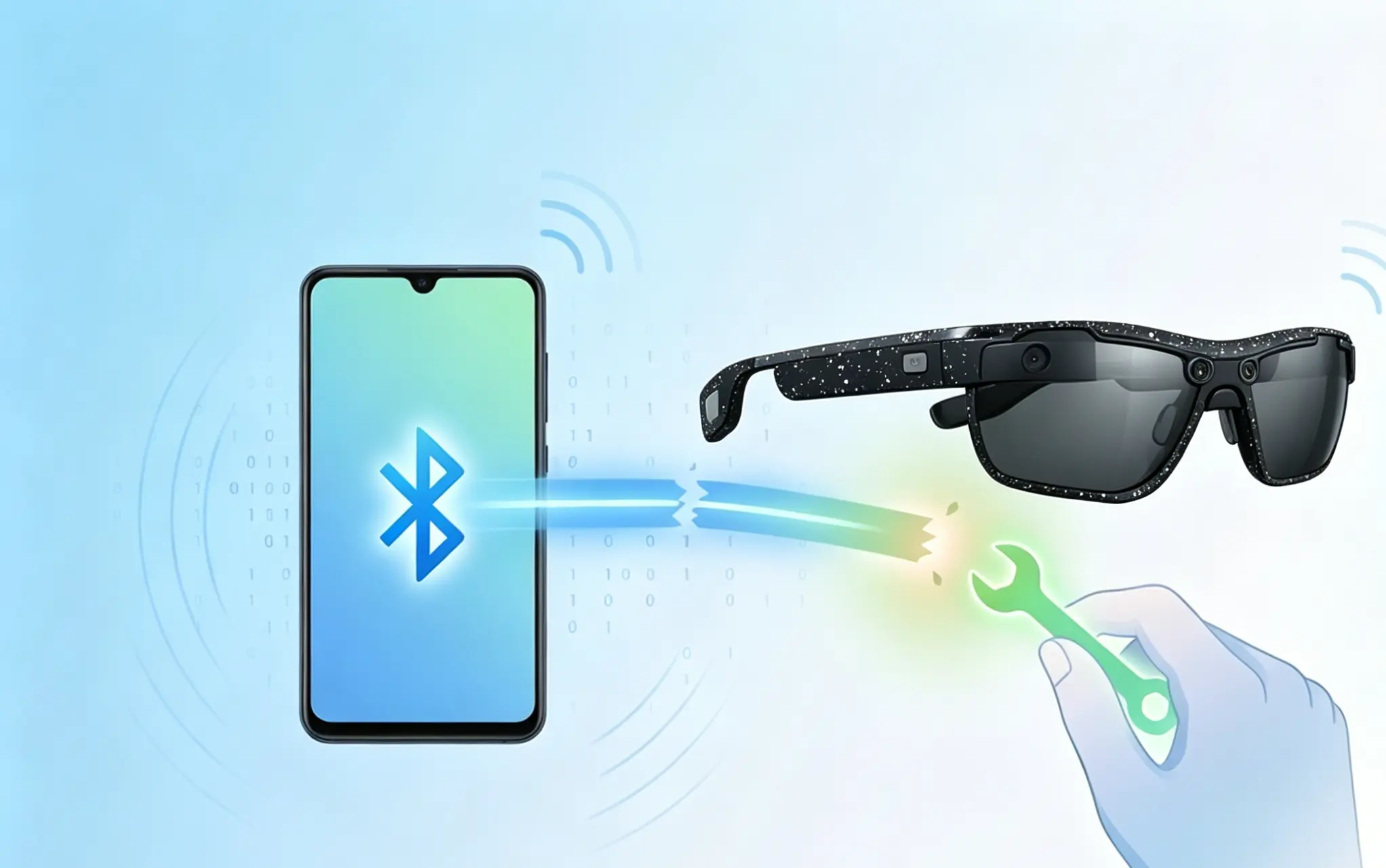
How to Fix Smart Glasses That Won’t Pair with Android Phones?
SpeCiC-AI-Smart-Glasses2026-05-13T23:38:00+08:00How to Fix Smart Glasses That Won’t Pair with Android Phones?
Let’s be real for a second. You just dropped a decent chunk of change on a pair of sleek smart glasses—maybe the latest SpeCiC Daily Lite for your morning commute, or the rugged SpeCiC POV Pro for your weekend cycling adventures. You unbox them, charge them up, and get ready to experience hands-free navigation, instant photo captures, and crystal-clear audio calls without fumbling for your phone.
But then it happens. The dreaded moment.
Your Android phone stares back at you with a blank Bluetooth list. Or worse, it shows your glasses perfectly clearly, but refuses to connect no matter how many times you frantically tap "Pair." You turn Bluetooth off and on. You restart your phone. You even try the classic "blow on the connector" trick that somehow worked for your old Game Boy. Nothing.
Sound familiar? You’re not alone.
Here’s the controversial truth that no tech brand will tell you: smart glasses pairing issues aren’t just "glitches." They’re the single biggest complaint about smart glasses worldwide, and Android users get the short end of the stick by a massive margin. Some people even claim this is intentional—that brands optimize for iPhone first and treat Android as an afterthought. Others say it’s just the messy reality of the fragmented Android ecosystem.
We’re not here to pick sides. We’re here to fix your problem.
The good news? 95% of these pairing failures are completely solvable with a little patience and some systematic troubleshooting. In this comprehensive guide, we’ll walk through every possible solution, from the embarrassingly simple "did you actually turn it on" to the slightly more advanced Android developer options tweaks. And yes, we’ll be giving special attention to SpeCiC smart glasses, since they have their own unique design choices that can sometimes trip up even the most tech-savvy users.
By the end of this article, you’ll have all the tools you need to get your smart glasses talking to your Android phone again. We’ll also throw in some heated debate topics to get the comment section fired up—because let’s be honest, nothing brings people together like complaining about Bluetooth.
So grab your glasses, your phone, and let’s dive in.
Chapter 1: First, Fix the Embarrassingly Simple Stuff (60% of Problems End Here)
Before we start digging into complicated system settings and hidden menus, let’s rule out the basics. You’d be absolutely shocked how many people spend hours troubleshooting, only to realize they missed something so obvious it makes them want to hide their phone in a drawer forever.
I’ve been there. We’ve all been there.
1.1 Are Your Glasses Actually Charged?
I know, I know. This sounds like the most patronizing question in the history of tech support. But hear me out.
Smart glasses have tiny, energy-dense batteries. If they’ve been sitting in a warehouse or on a store shelf for weeks before you bought them, they can be completely dead. And when a battery is fully drained, the device often won’t even enter pairing mode or show any lights at all. It will just sit there, looking sleek and useless.
For SpeCiC smart glasses specifically, the LED indicator on the right temple will flash white when they’re in pairing mode. If you press and hold the power button and see nothing—no light, no chime, no vibration—your glasses need a charge.
Plug them into the included charging case for at least 15 minutes before trying again. And yes, make sure the case itself is charged too. I’ve had more than one friend panic because they put dead glasses into a dead case and wondered why nothing happened.
Pro tip for SpeCiC users: If your glasses have been completely dead for more than a week, they might need a "jump start." Leave them plugged into the charging case for a full hour before attempting to turn them on. This gives the battery enough time to build up the minimum charge required for the Bluetooth radio to function.
💬 Quick poll: Have you ever spent 30+ minutes troubleshooting a device that was just dead? Be honest in the comments. I’ll go first: I once did this with a wireless mouse.
1.2 Is Bluetooth Actually Turned On?
Another classic "duh" moment that happens to the best of us.
You swear you turned on Bluetooth this morning. But maybe you accidentally tapped the Wi-Fi icon instead. Maybe your phone turned Bluetooth off automatically when you enabled battery saver mode. Or maybe you’re just sleep-deprived and your brain is playing tricks on you.
To check:
- Swipe down from the top of your screen to open the notification shade
- Swipe down again to expand the full quick settings panel
- Look for the Bluetooth icon (it looks like a stylized "B")
- If it’s grayed out, tap it to turn it on
For SpeCiC glasses, you also need to make sure the glasses themselves are turned on and in pairing mode. A quick 3-second press of the power button will turn them on, but that’s not enough for pairing. We’ll cover the correct pairing mode procedure in detail later.
1.3 Are Your Devices Close Enough?
Bluetooth has a theoretical range of about 30 feet (10 meters). But "theoretical" is the key word here.
During the initial pairing process, your devices are exchanging encryption keys and establishing a secure connection. This requires an extremely strong, stable signal. If there’s any interference or the signal is weak, the pairing process will fail every single time.
So put your phone and glasses right next to each other on a table. Not across the room. Not in your pocket. Not on the other side of your laptop. Literally inches apart.
And while you’re at it, move them away from any other electronic devices. We’ll talk more about interference later, but for now, just give your devices some space to do their thing.
1.4 Is Your Glasses Already Connected to Another Device?
Here’s a fun fact that no one tells you: Most smart glasses, including all SpeCiC models, can only connect to one device at a time.
If your glasses are already connected to your laptop, your tablet, or your partner’s phone, they won’t show up in your Android phone’s Bluetooth list. They’re too busy talking to someone else to notice you waving your phone around.
To fix this:
- Turn off Bluetooth on any other devices that your glasses might be connected to
- Or, disconnect the glasses from the other device manually
- Then, put your glasses back in pairing mode and try connecting to your Android phone
For SpeCiC glasses, you can check which device they’re connected to by opening the SpeCiC app on the previously connected device. Go to Settings > Connected Devices to see the current connection status.
1.5 Did You Restart Both Devices?
Ah, the universal tech support solution. It’s cliché. It’s overused. And it works about 30% of the time.
Restarting both your phone and your glasses clears temporary software glitches and resets the Bluetooth connection. It’s like hitting the reset button on a bad conversation—sometimes you just need to start over.
To restart your Android phone:
- Press and hold the power button until the power menu appears
- Tap "Restart" or "Reboot"
- Wait for your phone to fully restart
To restart SpeCiC smart glasses:
- Press and hold the power button on the right temple for 10 seconds
- The glasses will turn off automatically
- Wait 5 seconds, then press and hold the power button again for 3 seconds to turn them back on
Once both devices have restarted, try pairing again. If this works, you can go about your day and pretend you never had a problem. If not, don’t worry—we’re just getting started.
Okay, so you’ve ruled out all the basic stuff. Your glasses are charged. Bluetooth is on. Your devices are right next to each other. They’re not connected to anything else. And you’ve restarted everything twice.
That means the problem isn’t user error. It’s something deeper in the Bluetooth connection itself. Let’s dig in.
Chapter 2: Bluetooth Connection Deep Dive: Why the "Handshake" Fails
Bluetooth is a weird technology. It’s everywhere, it’s incredibly useful, and it’s also somehow the most unreliable thing ever invented.
To understand why pairing fails, you need to know a little bit about how it works. When you try to pair two devices, they perform a complex "handshake" where they exchange security keys, agree on communication protocols, and establish a connection. If any part of this handshake goes wrong, the pairing fails.
Here are the most common reasons this happens, and how to fix them.
2.1 Make Sure Your Glasses Are in Pairing Mode Correctly
This is the single most common mistake people make when pairing smart glasses. Every model has a slightly different way to enter pairing mode, and if you don’t do it exactly right, your phone will never see the glasses.
For SpeCiC smart glasses, the process is straightforward but easy to mess up if you’re not paying attention:
- Make sure the glasses are completely turned off
- Press and hold the power button on the right temple for 7-10 seconds (not just 3 seconds to turn them on)
- Keep holding until you see the white LED flash rapidly and hear a double chime
- Release the button—your glasses are now in pairing mode and will be discoverable for 2 minutes
Critical note: If you only hold the button for 3 seconds, the glasses will turn on but not enter pairing mode. They’ll immediately try to connect to the last device they were paired with instead. So make sure you hold the button long enough to see the rapid white flashing.
If your SpeCiC glasses still won’t enter pairing mode, try charging them for 15 minutes first. A low battery can sometimes prevent the device from entering pairing mode even if it turns on.
2.2 "Forget" the Device and Re-pair From Scratch
Sometimes, a previous pairing attempt can get corrupted in your phone’s memory. When this happens, your phone might show the glasses in your Bluetooth list but refuse to connect, or it might not show them at all.
It’s like your phone has a bad memory of your glasses and refuses to give them a second chance.
The solution is to "forget" the device on your phone and then re-pair it from scratch. This clears the old pairing information and allows the devices to establish a fresh, clean connection.
Here’s how to do it on Android:
- Open the Settings app
- Tap "Connected devices" or "Connections" (depending on your phone model)
- Tap "Bluetooth"
- Find your glasses in the list of paired devices
- Tap the gear icon next to the glasses’ name
- Tap "Forget" or "Unpair"
- Confirm the action when prompted
Once you’ve forgotten the device, put your glasses back in pairing mode and try pairing again. This should resolve most corrupted pairing issues.
For SpeCiC glasses specifically, you should also forget the device in the SpeCiC app:
- Open the SpeCiC app
- Tap the menu icon in the top left corner
- Tap "My Devices"
- Tap the three dots next to your glasses’ name
- Tap "Remove Device"
- Confirm the action
This ensures that all traces of the old pairing are removed from both your phone and the app.
2.3 Clear Your Phone’s Bluetooth Cache
Your Android phone stores temporary Bluetooth data in a cache to speed up connections. Over time, this cache can become bloated and corrupted, leading to all sorts of weird bluetooth connection problems.
Clearing the Bluetooth cache is like cleaning out your closet—it gets rid of all the old junk that’s taking up space and causing problems.
Here’s how to do it:
- Open the Settings app
- Tap "Apps" or "Applications"
- Tap the three dots in the top right corner and select "Show system apps"
- Scroll down and find "Bluetooth" in the list of system apps
- Tap "Storage"
- Tap "Clear Cache" (do NOT tap "Clear Data"—this will delete all your paired devices)
- Restart your phone
After restarting your phone, try pairing your glasses again. This simple step fixes more pairing issues than you’d believe.
2.4 Check for Bluetooth Interference
Bluetooth operates on the 2.4 GHz frequency band. Unfortunately, so does almost every other electronic device in your house.
Wi-Fi routers, microwaves, cordless phones, baby monitors, and even some wireless keyboards and mice all use the same frequency. If there are too many devices operating on this frequency in the same area, it can cause massive interference and disrupt Bluetooth connections.
Signs of Bluetooth interference include:
- Pairing failures for no apparent reason
- Frequent random disconnections
- Crackling or distorted audio
- Delayed responses to touch controls
To reduce interference:
- Move away from Wi-Fi routers, microwaves, and other electronic devices
- If possible, switch your Wi-Fi router to the 5 GHz band (most modern routers support both)
- Turn off other Bluetooth devices that you’re not using
- Try pairing in a different location
SpeCiC glasses use Bluetooth 5.3 technology, which is much more resistant to interference than older versions. But even Bluetooth 5.3 can’t compete with a microwave running at full power right next to your phone.
💬 Debate time: What’s the weirdest thing that’s ever interfered with your Bluetooth connection? I’ve heard stories about Christmas lights, garage door openers, and even a neighbor’s electric fence.
2.5 Verify Android Version Compatibility
Not all smart glasses work with all Android versions. Most modern smart glasses, including all SpeCiC models, require Android 8.0 (Oreo) or newer.
Controversial question: Is it fair for smart glasses brands to drop support for older Android versions?
On one hand, Android 8.0 was released in 2017. That’s ancient in tech years. Older versions of Android have serious security vulnerabilities, and supporting them takes time and resources away from developing new features.
On the other hand, not everyone can afford to upgrade their phone every two years. There are millions of people still using perfectly good phones running Android 7.1 or older.
We’re not going to settle this debate here. But if your phone is running Android 7.1 or older, you won’t be able to use SpeCiC smart glasses. You’ll need to update your phone’s software or get a newer phone.
To check your Android version:
- Open the Settings app
- Scroll down and tap "About phone" or "System"
- Look for "Android version"
If an update is available, install it. If not, you’ll need to use a newer phone to pair with your glasses.
So far, we’ve covered general Bluetooth issues that affect all smart glasses. But sometimes the problem isn’t with Bluetooth itself—it’s with your Android phone.
Android is a highly customizable operating system, and different manufacturers add their own tweaks and features that can sometimes interfere with Bluetooth connections. Let’s take a look at the most common Android-specific issues.
Chapter 3: Android Phone-Specific Issues: Why Your Brand Might Be the Problem
Here’s another controversial truth: Not all Android phones are created equal when it comes to Bluetooth.
Some brands have rock-solid Bluetooth performance. Others… not so much. And it’s not always the expensive flagship phones that work best. In fact, some budget phones have better Bluetooth than their premium counterparts.
Why? Because every manufacturer modifies the Android operating system to add their own features. And sometimes, those modifications break Bluetooth.
3.1 Disable Battery Saver Mode
Battery saver mode is great for extending your phone’s battery life. But it does this by limiting background processes and reducing the power to wireless connections, including Bluetooth.
If battery saver mode is enabled, it might prevent your phone from discovering or connecting to your smart glasses. It’s like your phone is trying to save energy by ignoring your glasses.
To disable battery saver mode:
- Swipe down from the top of your screen to open the quick settings panel
- Look for the "Battery Saver" icon (it looks like a battery with a leaf inside)
- If it’s highlighted, tap it to turn it off
For SpeCiC glasses, you should also disable battery optimization for the SpeCiC app. This ensures that the app can run in the background and maintain a stable connection with your glasses:
- Open the Settings app
- Tap "Apps" or "Applications"
- Find and tap the SpeCiC app
- Tap "Battery"
- Tap "Battery optimization"
- Select "All apps" from the dropdown menu
- Find the SpeCiC app in the list
- Tap "Don’t optimize"
- Tap "Done"
This will prevent Android from killing the SpeCiC app in the background, which is essential for maintaining a stable connection.
3.2 Check Location Permissions
Starting with Android 10, apps need location permission to use Bluetooth Low Energy (BLE), which is the technology that most modern smart glasses use for pairing and communication.
This is one of the most confusing and controversial changes Google has ever made. Why does a Bluetooth app need to know your location?
The official reason is that BLE beacons are often used for location tracking. So Google decided to require location permission for any app that uses BLE. But this means that if you deny location permission to the SpeCiC app, it won’t be able to discover or connect to your glasses.
It’s a stupid rule. But it’s the rule we have to live with.
To check and enable location permissions for the SpeCiC app:
- Open the Settings app
- Tap "Apps" or "Applications"
- Find and tap the SpeCiC app
- Tap "Permissions"
- Look for "Location" in the list of permissions
- Make sure the toggle is switched on
- Tap "Location" and select "Allow only while using the app"
"Allow only while using the app" is sufficient for most purposes. But if you experience frequent disconnections, try selecting "Allow all the time" to ensure the app can maintain the connection even when it’s in the background.
3.3 Disable Nearby Device Scanning
Android has a feature called "Nearby Device Scanning" that allows your phone to scan for nearby Bluetooth and Wi-Fi devices even when Bluetooth is turned off.
This feature is supposed to make it easier to connect to devices. But in practice, it often causes more problems than it solves. It can interfere with the pairing process for smart glasses and drain your phone’s battery for no reason.
To disable Nearby Device Scanning:
- Open the Settings app
- Tap "Location"
- Tap "Location services"
- Scroll down and find "Nearby Device Scanning"
- Toggle the switch off
After disabling this feature, try pairing your glasses again. If it works, you can leave it off permanently. You won’t miss it.
3.4 Reset Network Settings
If you’ve tried everything else and your phone still won’t pair with your glasses, resetting your network settings might be the solution.
This will reset all your Wi-Fi, Bluetooth, and mobile data settings to their factory defaults. It’s like hitting the reset button on all your phone’s network connections.
Important note: Resetting network settings will delete all your saved Wi-Fi passwords and paired Bluetooth devices. Make sure you have your Wi-Fi passwords handy before proceeding.
To reset network settings on Android:
- Open the Settings app
- Tap "System" or "General management"
- Tap "Reset" or "Reset options"
- Tap "Reset network settings"
- Tap "Reset settings"
- Enter your PIN or password if prompted
- Tap "Reset settings" again to confirm
After the reset is complete, your phone will restart. Once it restarts, you’ll need to reconnect to your Wi-Fi network and re-pair all your Bluetooth devices, including your smart glasses.
3.5 Manufacturer-Specific Quirks and Fixes
Different Android manufacturers have their own unique Bluetooth issues. Here are some tips for the most popular brands:
Samsung Galaxy Devices
Samsung has the most aggressive battery optimization of any Android manufacturer. It will kill background apps left and right to save battery, including the SpeCiC app.
To prevent this:
- Open Settings > Battery and device care > Battery > Background usage limits
- Tap "Never sleeping apps"
- Tap the "+" icon
- Find the SpeCiC app and tap "Add"
Samsung also has a habit of using non-standard Bluetooth audio codecs. If you’re experiencing audio problems after pairing, try changing the codec to SBC or AAC in the developer options.
Google Pixel Devices
Pixel devices generally have excellent Bluetooth performance. But they can sometimes have issues with the "Fast Pair" feature.
If Fast Pair isn’t working for your SpeCiC glasses, try disabling it temporarily:
- Open Settings > Connected devices > Connection preferences
- Tap "Fast Pair"
- Toggle the switch off
After pairing, you can turn Fast Pair back on if you want to use it for other devices.
OnePlus Devices
OnePlus is another brand with notoriously aggressive battery optimization. Make sure you’ve added the SpeCiC app to the "Don’t optimize" list in the battery settings.
OnePlus also has a feature called "Deep Optimization" that can kill background apps even if you’ve disabled battery optimization. To turn it off:
- Open Settings > Battery > Advanced optimization
- Toggle "Deep optimization" off
💬 Hot take: Samsung’s battery optimization is so aggressive, it’s basically a feature that breaks other features. Do you agree? Let’s fight about it in the comments.
Okay, so we’ve covered general Bluetooth issues and Android-specific issues. If you’re still having problems, that means the issue is probably with your SpeCiC glasses themselves.
Don’t worry—this doesn’t necessarily mean your glasses are broken. Most SpeCiC-specific pairing issues are easy to fix with a few simple steps.
Chapter 4: SpeCiC Smart Glasses-Specific Troubleshooting
SpeCiC designs their glasses to be as user-friendly as possible. But they also pack a lot of features into a tiny package, which can sometimes lead to unique pairing issues.
Let’s take a look at the most common SpeCiC-specific problems and how to fix them.
4.1 How to Factory Reset SpeCiC Smart Glasses
If you’ve tried everything else and your SpeCiC glasses still won’t pair, a factory reset might be necessary. This will reset the glasses to their original factory settings, which will erase all your personal data and paired devices.
It’s a last resort, but it works more often than not.
Here’s how to factory reset SpeCiC smart glasses:
- Make sure the glasses are turned off
- Put the glasses in the charging case and close the lid
- Wait 5 seconds
- Open the lid and press and hold the button on the back of the charging case for 15 seconds
- The LED indicators inside the case will flash red and white several times
- Release the button when the LEDs stop flashing
- Close the lid and wait 10 seconds
- Open the lid—your glasses have been reset to factory settings
After the factory reset, you’ll need to put the glasses in pairing mode again and re-pair them with your phone. This should resolve any software issues that were preventing the glasses from pairing.
4.2 Update Your SpeCiC Glasses Firmware
Outdated firmware is another common cause of pairing issues. SpeCiC regularly releases firmware updates to fix bugs, improve performance, and add new features.
If your glasses are running an old firmware version, it might not be compatible with the latest version of Android or the SpeCiC app.
To update your SpeCiC glasses firmware:
- Make sure your glasses are paired with your phone and the SpeCiC app is open
- Tap the menu icon in the top left corner of the app
- Tap "My Devices"
- Tap your glasses’ name
- Tap "Firmware Update"
- If an update is available, tap "Download and Install"
- Keep the app open and your glasses close to your phone during the update process
- The update will take 5-10 minutes to complete
- Your glasses will restart automatically when the update is finished
Important notes:
- Make sure your glasses have at least 50% battery before starting the update
- Make sure your phone is connected to a stable Wi-Fi network
- Do not close the app or turn off your glasses during the update process—this can brick your device
4.3 Check the SpeCiC App for Updates
In addition to updating your glasses’ firmware, you should also make sure you’re running the latest version of the SpeCiC app. Outdated app versions can cause compatibility issues with your glasses or your phone’s operating system.
To update the SpeCiC app:
- Open the Google Play Store
- Tap your profile icon in the top right corner
- Tap "Manage apps and device"
- Tap "Updates available"
- Find the SpeCiC app in the list
- Tap "Update"
If you don’t see the SpeCiC app in the updates list, that means you’re already running the latest version.
4.4 Troubleshooting SpeCiC POV Pro Specific Issues
The SpeCiC POV Pro is designed for outdoor activities like cycling, hiking, and running. It has a built-in camera, video recorder, and GPS, which make it incredibly versatile—but also more complex than the Daily Lite.
Here are some tips specific to the POV Pro:
- The POV Pro’s camera and Bluetooth radio share some processing resources. If the camera is recording, it can sometimes interfere with the Bluetooth connection. Make sure the camera is not recording when you’re trying to pair the glasses.
- The POV Pro is water-resistant, but if it gets wet, the touch controls and Bluetooth connection can sometimes be affected. Make sure the glasses are completely dry before trying to pair them.
- The POV Pro has a longer battery life than the Daily Lite, but if the battery is below 10%, it might disable the Bluetooth radio to save power for the camera. Charge the glasses for at least 30 minutes before trying again.
4.5 Troubleshooting SpeCiC Daily Lite Specific Issues
The SpeCiC Daily Lite is designed for everyday use, with a focus on comfort and portability. It’s simpler than the POV Pro, but it still has a few unique quirks.
Here are some tips specific to the Daily Lite:
- The Daily Lite has a very slim design and a smaller battery than the POV Pro. If you haven’t used the glasses in more than two weeks, the battery will be completely dead. Charge the glasses for at least 15 minutes before trying to turn them on or pair them.
- The Daily Lite uses touch controls on the right temple. If the touch controls are not responding, it might be because the glasses are not paired correctly. Try forgetting the device and re-pairing.
- The Daily Lite supports prescription lenses. If you’ve recently had prescription lenses installed, make sure the lenses are not blocking the Bluetooth antenna, which is located in the right temple.
Controversial debate: SpeCiC packs a lot of features into their glasses’ Bluetooth chips. Some people say this causes pairing instability. Others say it’s worth it for the low-latency audio and instant photo capture. Which side are you on?
If you’ve made it this far and your glasses still won’t pair, you’re dealing with a stubborn problem. But don’t give up yet. There are still a few advanced troubleshooting techniques we can try.
Chapter 5: Advanced Troubleshooting Techniques for Stubborn Issues
These steps are a bit more technical, but they can resolve pairing issues that the basic fixes can’t. Don’t worry—you don’t need to be a computer expert to follow them.
5.1 Enable Developer Options and Tweak Bluetooth Settings
Android has a hidden menu called "Developer Options" that contains advanced settings for debugging and customization. You can use these settings to tweak the Bluetooth connection and resolve pairing issues.
First, you need to enable Developer Options:
- Open the Settings app
- Scroll down and tap "About phone" or "System"
- Find "Build number" and tap it 7 times
- You’ll see a message that says "You are now a developer!"
- Go back to the main Settings screen—you’ll now see "Developer options" in the list
Once you’ve enabled Developer Options, you can try the following Bluetooth tweaks:
Change Bluetooth AVRCP Version
AVRCP is the Bluetooth standard that allows your phone to control audio playback on your glasses. Some devices have issues with newer AVRCP versions. Try changing to an older version:
- Open Settings > Developer options
- Scroll down to "Bluetooth AVRCP version"
- Try selecting "AVRCP 1.4" or "AVRCP 1.5" instead of the default version
Disable A2DP Hardware Offload
A2DP is the Bluetooth standard for streaming high-quality audio. Some phones have issues with hardware offloading for A2DP. Try disabling it:
- Open Settings > Developer options
- Scroll down to "Disable A2DP hardware offload"
- Toggle the switch on
Change Bluetooth Audio Codec
Different devices support different Bluetooth audio codecs. If you’re experiencing pairing issues or poor audio quality, try changing the codec to SBC, which is the most universal codec:
- Open Settings > Developer options
- Scroll down to "Bluetooth audio codec"
- Select "SBC" from the list
After making any of these changes, restart your phone and try pairing your glasses again. If the issue is resolved, you can leave the settings as they are. If not, you can change them back to their default values.
5.2 Try Pairing with a Different Phone
If you have access to another Android phone, try pairing your glasses with that phone. This will help you determine whether the issue is with your original phone or with the glasses themselves.
If the glasses pair successfully with the other phone, that means the issue is with your original phone. In that case, you might need to perform a factory reset on your phone to resolve the issue.
If the glasses won’t pair with any phone, that means the issue is with the glasses themselves. In that case, you should contact SpeCiC customer support for further assistance.
5.3 Perform a Factory Reset on Your Phone
This is the nuclear option. But if all else fails, performing a factory reset on your phone might be the only way to resolve the issue.
A factory reset will erase all data on your phone and restore it to its original factory settings. This will eliminate any software issues that are causing the pairing problem.
Important note: Before performing a factory reset, make sure you back up all your important data, including photos, videos, contacts, and apps. A factory reset will delete everything on your phone.
To perform a factory reset on Android:
- Open the Settings app
- Tap "System" or "General management"
- Tap "Reset" or "Reset options"
- Tap "Factory data reset"
- Read the information carefully and tap "Reset phone"
- Enter your PIN or password if prompted
- Tap "Delete all" to confirm
After the factory reset is complete, your phone will restart. Once it restarts, you’ll need to set up your phone again from scratch. Then, try pairing your glasses again.
Congratulations! You’ve successfully paired your smart glasses with your Android phone. Now let’s make sure you never have to go through this nightmare again.
Chapter 6: How to Prevent Future Pairing Issues
Most pairing issues are preventable. By following these simple tips, you can minimize the chances of running into the same problems again.
6.1 Keep Everything Up to Date
This is the single most important thing you can do to prevent pairing issues. Always keep your phone’s operating system, the SpeCiC app, and your glasses’ firmware up to date.
Developers regularly release updates to fix bugs and improve compatibility. Staying up to date will ensure that your devices work together smoothly.
6.2 Don’t Pair Too Many Devices
Most Android phones can only handle a limited number of paired Bluetooth devices at once. If you have too many devices paired, it can cause conflicts and lead to pairing issues.
Periodically go through your list of paired devices and remove any that you no longer use. This will keep your Bluetooth list clean and reduce the chances of conflicts.
6.3 The Great Multi-Device Connection Debate
Our final controversial take: You should never enable multi-device connection on your smart glasses.
Almost every smart glasses brand advertises multi-device connection as a premium feature. It allows you to switch between your phone and your laptop with a single tap. Sounds great, right?
But here’s the problem: Multi-device connection is the number one cause of random disconnections and pairing failures. It forces your glasses to constantly scan for other devices, which drains the battery and destabilizes the connection.
Our recommendation? Disable multi-device connection entirely. Pair your glasses with one device and one device only. If you need to switch to another device, manually disconnect from the first one first.
It’s a little less convenient. But it will save you hours of frustration.
💬 Final debate: Do you use multi-device connection? Has it ever caused you problems? Or do you think the convenience is worth the occasional headache? Let us know in the comments!
6.4 Charge Your Glasses Regularly
Low battery is one of the most common causes of pairing issues. Make sure you charge your SpeCiC glasses regularly, especially if you haven’t used them in a while.
The charging case has a built-in battery that can charge your glasses multiple times, so keep the case charged too. Get into the habit of putting your glasses in the case every night before you go to bed.
6.5 Avoid Interference
As we mentioned earlier, Bluetooth interference can cause pairing issues and disconnections. When using your smart glasses, try to stay away from other electronic devices that operate on the 2.4 GHz frequency band.
If you’re in a crowded area with lots of Bluetooth devices, like a coffee shop or an airport, you might experience more disconnections than usual. This is normal, and it’s not a problem with your glasses.
Chapter 7: When to Contact SpeCiC Customer Support
If you’ve tried every single solution in this guide and your glasses still won’t pair with your Android phone, it’s time to contact SpeCiC customer support.
There might be a hardware issue with your glasses that requires professional repair or replacement. SpeCiC offers excellent customer support, and they’ll be able to help you resolve the issue or arrange for a replacement if necessary.
Before contacting support, make sure you have the following information ready:
- Your glasses’ model number (you can find this on the box or in the SpeCiC app)
- Your glasses’ serial number (also on the box or in the app)
- Your phone’s model number and Android version
- A detailed description of the issue you’re experiencing
- A list of the android bluetooth troubleshooting steps you’ve already tried
You can contact SpeCiC customer support through the SpeCiC app, their official website, or by email. They typically respond within 24 hours.
Conclusion
Bluetooth pairing issues can be incredibly frustrating, especially when you’re excited to use your new smart glasses. But as we’ve seen in this guide, most of these issues are fixable with a little patience and some systematic troubleshooting.
We’ve covered everything from the basic "did you turn it off and on again" to advanced developer options tweaks, and we’ve given special attention to SpeCiC smart glasses and their unique features. We’ve also thrown in some controversial debate topics to get the conversation going.
Remember, the key to successful troubleshooting is to be systematic. Start with the simplest solutions first, and work your way up to the more complex ones. And don’t forget to keep your software up to date—this will prevent most pairing issues from happening in the first place.
If you’ve tried everything and you’re still having issues, don’t hesitate to contact SpeCiC customer support. They’re there to help, and they’ll be able to resolve any hardware issues that you can’t fix on your own.
Now that you’ve got your glasses paired and working, go out and enjoy all the amazing features that SpeCiC smart glasses have to offer. Whether you’re using them for hands-free navigation, capturing photos and videos on your adventures, or just listening to music while you work, smart glasses are a game-changer.
And if you ever run into pairing issues again, you know exactly where to find this guide.
Happy wearing!